Game Stats Widgets
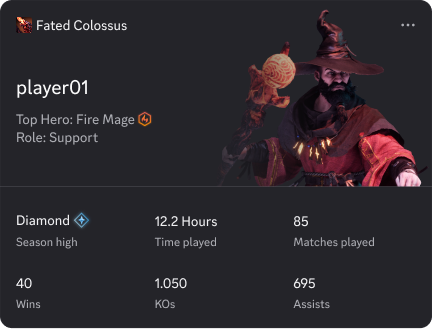
Game Stats Widgets let players show off their progress, such as rank, playtime, wins, and any custom stat you define, right on their Discord profile. Friends can see live updates of those stats, which keeps your game visible outside of play sessions and gives players new ways to show off their progress.
Game Stats Widgets are powered by an API that uses your application's bot token to read and write profile data on behalf of your players. It requires that the player has linked their Discord account to your game. See Account Linking on Web for details on how to link accounts.
Game data is stored as part of a user's Application Identity, a record of the user's identity in your game, keyed by your application ID, the user's Discord ID, and the user's ID in your system. See the Application Identity Profile Resource for full object and endpoint reference.
How Game Stats Widgets Work
Section titled “How Game Stats Widgets Work”- Configure your widget in the Developer Portal — choose a layout for each surface and set up which fields to display
- Players link their Discord account to your game via OAuth2, granting your application permission to write to their profile
- Your game server sends player stats to the Application Identity Profile API using your bot token
- Players add your widget to their profile to share their stats with friends
There are two categories of stats you can provide:
- Primary data: pre-configured fields with fixed keys defined by Discord (
rank_name,total_wins,playtime_hours, etc.). Populate the ones that best fit your game and genre. - Dynamic data: custom fields you define with your own name and value, for stats that aren't covered by the primary set. Supports string, number, and media types.
You can send both in the same API payload, under data.primary and data.dynamic. In the widget editor, you can reference any of the provided data by setting a field's Value Type to User Data and entering the key (the primary field name or the dynamic field's name).
Check out Choosing What to Display for guidance on which stats work best on Discord profiles, and the Application Identity Profile Resource for the full field reference.
Prerequisites
Section titled “Prerequisites”Before you begin, make sure you have:
- Discord application set up
- Created a Discord application in the Developer Portal
- A bot token from the Bot section of your application dashboard
- Social SDK enabled
- Enabled the Discord Social SDK for your application in the Developer Portal and agreed to the Discord Social SDK Terms
- Claimed your game on Discord
- Your game must be claimed on Discord from the Developer Portal. See Game Claiming for eligibility and steps.
- If you have agreed to the Discord Social SDK Terms and don't see Games > Widget in the Developer Portal sidebar, your game has likely not been claimed yet.
- Account linking configured
- Implemented Account Linking on Web with the necessary
application_identities.writescope in your OAuth2 flow
- Implemented Account Linking on Web with the necessary
Next Steps
Section titled “Next Steps”Widget Configuration
Set up your widget's layouts and fields in the Developer Portal.
Sending Game Data
Authorize requests and send profile data to the Application Identity Profile API.
Best Practices
When to sync data and how to present your widget to users.
Web Account Linking
Let players link their Discord account to your game so you can write to their profile.