Sending Direct Messages
Overview
Section titled “Overview”Direct Messages (DMs) allow players to communicate privately. This guide will show you how to:
- Send text messages between users
- Handle displaying messages in your game
- Retrieve conversation history and summaries
Prerequisites
Section titled “Prerequisites”Before you begin, make sure you have:
- Set up the Discord Social SDK with our Getting Started guide
Types of Chat Messages
Section titled “Types of Chat Messages”The Discord Social SDK supports two types of chat:
The SDK receives messages in the following channel types:
- DM
- Ephemeral DM
- Lobby
Let's get started with sending a direct message to another user.
Sending a Direct Message to a User
Section titled “Sending a Direct Message to a User”Here's how to send a direct message. You'll need the recipient's Discord ID and the message you want to send.
std::string message = "ready to queue?";
uint64_t recipientId = 1234567890; // The recipient's Discord ID

client->SendUserMessage(recipientId, message, [](auto result, uint64_t messageId) {
  if (result.Successful()) {
    std::cout << "✅ Message sent successfully\n";
  } else {
    std::cout << "❌ Failed to send message: " << result.Error() << "\n";
  }
});
Syncing Messages with Discord
Section titled “Syncing Messages with Discord”In some situations, messages from your game with the Social SDK will also appear in Discord. This will happen for:
- 1 on 1 chat when at least one of the users is a full Discord user
- Lobby chat when the lobby is linked to a Discord channel
- The message must have been sent by a user who is not banned on Discord.
When messaging between provisional accounts or non-friends, channel ID and recipient ID is set to the other user's ID. These messages are sent ephemerally and do not persist within a channel. Because of that, you will not be able to resolve a ChannelHandle for them.
Receiving and Rendering Messages
Section titled “Receiving and Rendering Messages”When a user sends a message, the SDK can respond to new messages by registering Client::SetMessageCreatedCallback. You can access the message content and sender's ID in your callback from the MessageHandle object.
The MessageHandle represents a single message received by the SDK.
client->SetMessageCreatedCallback([&client](uint64_t messageId) {
  if (auto message = client->GetMessageHandle(messageId)) {
    std::cout << "New message from " << message->AuthorId() << ": " << message->Content() << "\n";
  }
});
There are also callbacks for when a message is updated or deleted. Register these callbacks with Client::SetMessageUpdatedCallback and Client::SetMessageDeletedCallback.
Suppressing Double Notifications
Section titled “Suppressing Double Notifications”Suppose the user has the Discord desktop application open on the same machine as the game. In that case, they will hear notifications from the Discord application, even though they can see those messages in-game. So to avoid double-notifying users, you should call Client::SetShowingChat whenever the chat is shown or hidden to suppress those duplicate notifications.
Legal Disclosure Message Type
Section titled “Legal Disclosure Message Type”As a convenience for game developers, the first time a user sends a message in the game, that message shows up on the Discord client. The SDK will inject a "fake" message into the chat that contains a basic English explanation of what is happening to the user. You can identify these messages with the MessageHandle::DisclosureType method. We encourage you to customize the rendering of these messages, possibly changing the wording, translating them, and making them look more "official". You can choose to avoid rendering these as well.
Message History
Section titled “Message History”The SDK keeps the 25 most recent messages in each channel in memory, including direct messages. For older messages, see the Getting Direct Message History section below to retrieve additional history from Discord's servers.
A MessageHandle will keep working even after the SDK has discarded the message for being too old.
You just won't be able to create new MessageHandle objects for that message via Client::GetMessageHandle.
Working with Unrenderable Content
Section titled “Working with Unrenderable Content”Messages sent on Discord can contain content that may not be renderable in-game, such as images, videos, embeds, polls, and more. The game isn't expected to render these. Instead, it should show a notice so the user knows there is more content and a way to view it on Discord. The MessageHandle::AdditionalContent method will contain data about the non-text content in this message.
You can use this metadata to render a placeholder message for players and can link out to Discord using Client::CanOpenMessageInDiscord and Client::OpenMessageInDiscord.
There is also more information about messages in the Discord API documentation.
Getting Direct Message History
Section titled “Getting Direct Message History”The SDK provides two methods to retrieve direct message conversation history, allowing you to display past conversations when users open a DM or browse their message list.
Retrieving All Conversation Summaries
Section titled “Retrieving All Conversation Summaries”Use Client::GetUserMessageSummaries to get a list of all users the current user has DM conversations with, along
with the most recent message ID for each conversation:
client->GetUserMessageSummaries([](const discordpp::ClientResult &result,
                                  const std::vector<discordpp::UserMessageSummary> &summaries) {
    if (result.Successful()) {
        std::cout << "📋 Retrieved " << summaries.size() << " conversations\n";

        for (const auto &summary : summaries) {
            std::cout << "User ID: " << summary.UserId()
                     << ", Last Message ID: " << summary.LastMessageId() << "\n";
        }
    } else {
        std::cerr << "❌ Failed to retrieve conversation summaries\n";
    }
});
This is particularly useful for:
- Building a conversation list UI
- Determining which users have active conversations
- Finding the most recent activity in each conversation
Retrieving Messages from a Specific Conversation
Section titled “Retrieving Messages from a Specific Conversation”Use Client::GetUserMessagesWithLimit to fetch message history from a specific DM conversation:
const uint64_t recipientId = 1234567890; // The other user's Discord ID
const int32_t messageLimit = 50; // Number of recent messages to retrieve (max 200)

client->GetUserMessagesWithLimit(
    recipientId, messageLimit,
    [](const discordpp::ClientResult &result,
       const std::vector<discordpp::MessageHandle> &messages) {
        if (result.Successful()) {
            std::cout << "💬 Retrieved " << messages.size()
                     << " messages from conversation\n";

            // Messages are returned in reverse chronological order (newest first)
            for (const auto &message : messages) {
                std::cout << "Message: " << message.Content()
                         << " from " << message.AuthorId() << std::endl;
            }
        } else {
            std::cerr << "❌ Failed to retrieve message history\n";
        }
    }
);
Important limitations:
- Only a maximum of 200 messages and up to 72 hours of history can be retrieved
- Both players must have played the game for DM history to be accessible
- If either user hasn't played the game, the system cannot find a channel between them and may return a 404
discordpp::ErrorType::HTTPErrorerror
Key points about Client::GetUserMessagesWithLimit that are important to note:
- Messages are returned in reverse chronological order (newest first)
- The function checks the local cache first and only makes an HTTP request if needed
- Pass 0 or a negative value for
limitto retrieve all available messages (up to the 200 message maximum)
This functionality is useful for:
- Displaying conversation history when a user opens a DM
- Implementing message scrollback features
- Preserving conversation context across game sessions
- Building a full-featured in-game messaging interface
In-Game Direct Message Settings
Section titled “In-Game Direct Message Settings”The Discord client provides a settings screen for users to be able to control who can DM them in-game via the Social SDK.
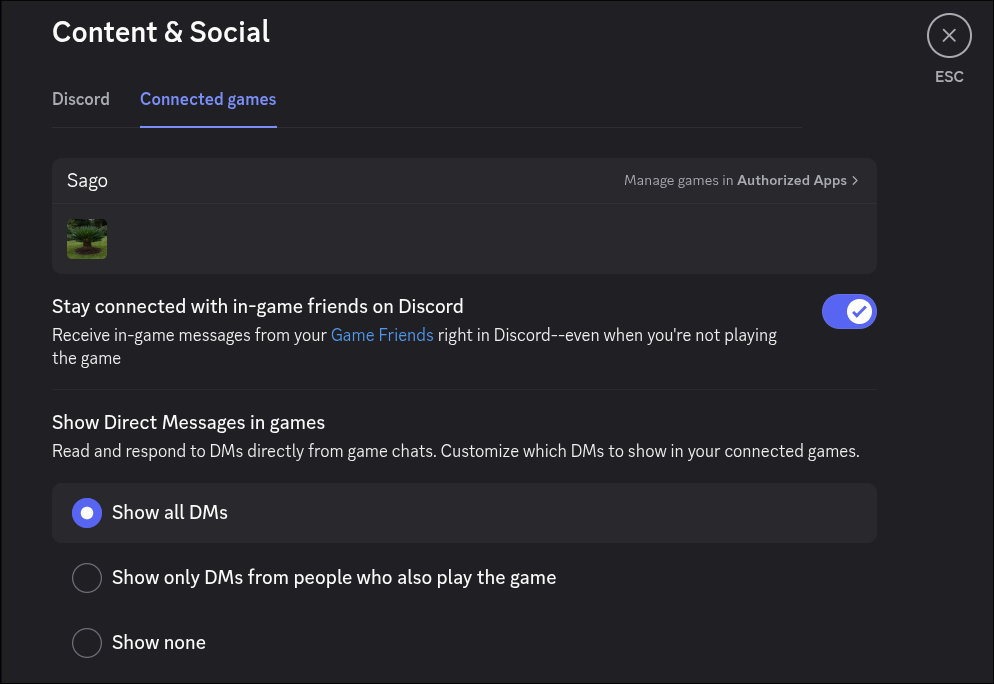
You cannot control these settings directly with the Social SDK. However, you can call
Client::OpenConnectedGamesSettingsInDiscord, which opens the Connected Games settings in the Discord client,
where users can manage their direct messaging settings related to games using the Discord Social SDK.
If the client isn't connected or the user is a provisional account, this function does nothing.
It is always a no-op for console platforms.
Development Rate Limits
Section titled “Development Rate Limits”Prior to being approved for increased rate limits, sending direct messages is limited to 100 per 2 hours per application.
These limitations are designed to provide sufficient capacity for development, testing, and small-scale demos while ensuring system stability.
For guidance on detecting and retrying rate limited requests in the SDK, see Handle Rate Limits.
Next Steps
Section titled “Next Steps”Now that you know how to send and receive messages, check out these other Discord Social SDK features:
Setting Rich Presence
Display in-game status and activity to friends.
Managing Lobbies
Bring players together in a shared lobby with invites, text chat, and voice comms.
Linked Channels
Enable text chat between a Discord channel and your game.
Need help? Join the Discord Developers Server and share questions in the #social-sdk-dev-help channel for support from the community.
If you encounter a bug while working with the Social SDK, please report it here: https://dis.gd/social-sdk-bug-report
Change Log
Section titled “Change Log”| Date | Changes |
|---|---|
| September 9, 2026 | Correct legal disclosure message privacy scope |
| September 8, 2026 | Clarify legal disclosure message visibility and history behavior |
| August 29, 2025 | Add DM history |
| June 30, 2025 | Add communications scope warning |
| May 06, 2025 | link to DM Settings |
| March 17, 2025 | initial release |