Setting a User's Rich Presence
When developing an Activity, the Embedded App SDK makes it easy to integrate Rich Presence to display details about what a user is up to inside of your game or social experience.
Rich Presence data can be thought of as an extension of your Activity—and leveling it up just a little makes it more interesting and relevant to the user playing your Activity (and their friends that might want to jump in and play). This guide provides an overview of the platform and technical knowledge you need to integrate Rich Presence with your existing Activity.
The rest of the guide assumes you've already developed an app that can launch an Activity. If you aren't at that point quite yet, you should follow the guide on building your first Activity before continuing.
Understanding Rich Presence Data
Section titled “Understanding Rich Presence Data”Default Rich Presence Data
Section titled “Default Rich Presence Data”By default, when a user is connected to your Activity, the app's icon will appear on their profile. If the user viewing the profile has the ability to join, an "Ask to Join" button will be displayed as well.
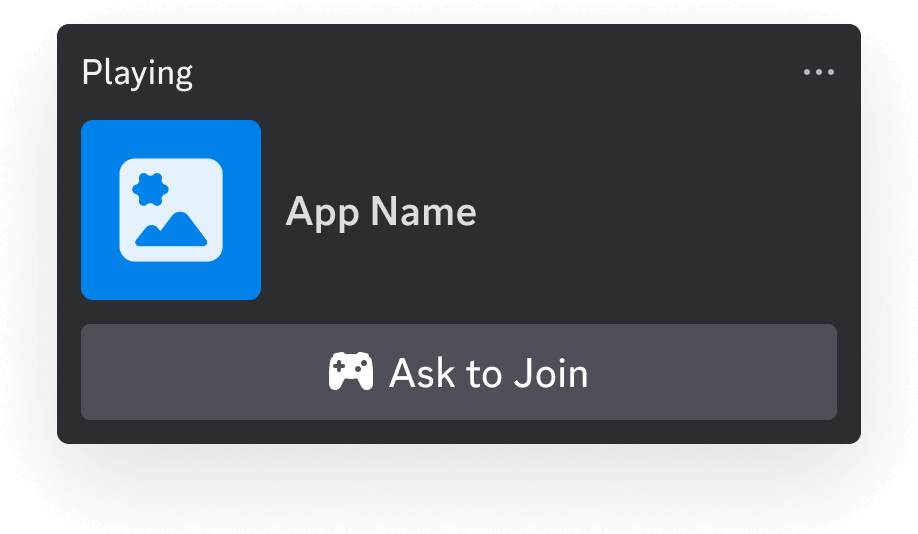
While this is okay, it's pretty limited and doesn't provide much context about what a user is actually doing inside of the Activity. In the following sections, we'll take a look at what richer and more actionable presence can look like.
Custom Rich Presence Data
Section titled “Custom Rich Presence Data”Now let's see what custom presence data can look like when a user joins your Activity. The types for these fields and examples are in the sections below, but for now let's just get an idea of what we're working with:
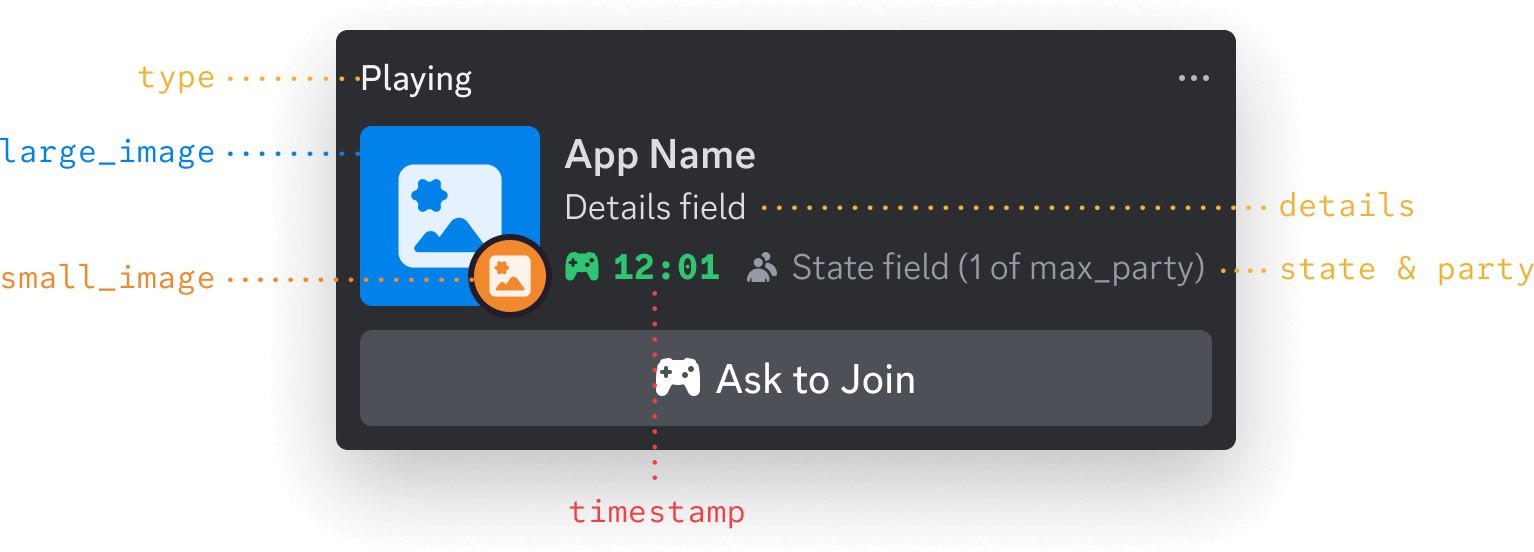
A few small things to note about the above image:
large_imageandsmall_imageare both in theassetsobject, which you can see below in the table below. They're labeled with the object's keys to make it more clear how they appear in a Discord profile.- You can't set App Name when setting presence—it's always the name configured in your app's settings.
- The state
(1 of max_party)badge will only render when a party field is provided. Otherwise, state will be shown in a line of text below details.
Updating Presence
Section titled “Updating Presence”When updating Rich Presence data using the Embedded App SDK, the only real command you need to use is setActivity(). Under the hood, setActivity() calls the RPC SET_ACTIVITY command with the features and fields available when you're building an Activity.
Why am I seeing the word activity everywhere?
As you start exploring the Rich Presence docs, you'll start seeing the word "activity" a lot. The "activities" referenced in docs (like the RPC ones) aren't related to the Activities you're building with the Embedded App SDK.
When Rich Presence was introduced, the underlying object that contains presence data was called an "activity" (long before the Embedded App SDK), which is what the RPC SET_ACTIVITY command is referencing. And that's also why the Embedded App SDK's wrapper around the RPC command is called setActivity() yet isn't really related to setting the state for the kind of Activity that you're building.
We know, it's confusing ¯\_(⊙︿⊙)_/¯ — the naming was logical at the time because it was really about the user's activity in a 3rd party game or service, but now it sorta feels like activity-ception. Understanding the nuances here aren't super important, and it's why we have guides like this one. But as they say...the more you (at least sort of) know.
rpc.activities.write Scope
Section titled “rpc.activities.write Scope”To display custom Rich Presence data for a user, your app will need to be authorized with the rpc.activities.write scope for that user.
To request the scope, your authorize() call might look something like this:
Example requesting rpc.activities.write with authorize()
// Authorize with Discord Client
const { code } = await discordSdk.commands.authorize({
  client_id: import.meta.env.VITE_DISCORD_CLIENT_ID,
  response_type: "code",
  state: "",
  prompt: "none",
  scope: [
    "identify",
    "rpc.activities.write"
  ],
});
setActivity Fields
Section titled “setActivity Fields”When calling setActivity(), you are expected to pass a partial activity object.
Below is a table with many of the available fields for the activity partial. Some were left out since they don't have an effect for Activities.
Activity partial object
Section titled “Activity partial object”| field | type | description |
|---|---|---|
| type | integer | Activity type, which determines the header text for the Rich Presence data |
| state | string | User's current party status |
| details | string | What the player is currently doing in your Activity |
| timestamps | timestamps object | Unix timestamps to display start and/or end times |
| assets | assets object | Images used for the Rich Presence data (and their hover texts) |
| party | party object | Information for the current party of the player |
setActivity Example
Section titled “setActivity Example”Now let's take a look at more of a real example. Take a look at the Rich Presence data below that is for an Activity:
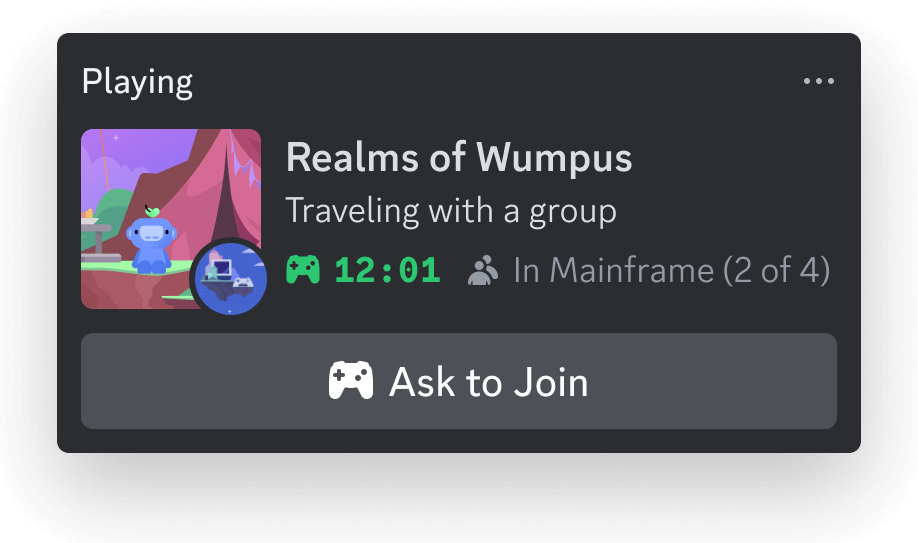
To create this sort of Rich Presence, here is what the setActivity() code would look like:
Example calling setActivity() command
await discordSdk.commands.setActivity({
  activity: {
    type: 0,
    details: 'Traveling with a group',
    state: 'In Mainframe',
    assets: {
      large_image: 'main-game-image',
      large_text: 'in a group',
      small_image: 'map-mainframe',
      small_text: 'in mainframe'
    },
    timestamps: {
      start: 1723137832
    },
    party: {
      size: [2,4]
    }
  }
});
Uploading Custom Assets
Section titled “Uploading Custom Assets”To upload custom art assets for Rich Presence, navigate to your app's settings and click Rich Presence on the left-hand sidebar. On the Art Assets page, you can upload up to 300 custom assets for your app. It's recommended to make all Rich Presence assets 1024 x 1024.
When uploading assets, the asset keys will automatically be changed to lowercase. Keep this in mind when referencing asset keys in the assets object when calling setActivity()—for example, an asset uploaded as Main-Game-Image would be referenced as main-game-image.
Using External Custom Assets
Section titled “Using External Custom Assets”Typically when building an Activity, you need to be aware of the proxy and how to use external resources. However, luckily for you (and the writer of this guide), image URLs in fields for features like Rich Presence don't need to jump through any extra hoops.
If you have more than 300 custom assets or want to use images stored somewhere else, you can specify an external URL for large_image or small_image within the assets object.
Example setting presence with an external asset
await discordSdk.commands.setActivity({
  activity: {
    type: 2,
    state: 'Broken Hearts and Code (club edit)',
    details: 'DJ Wump',
    assets: {
      large_image: 'https://example.com/album-covers/dj-wump/broken-code-and-hearts-club-edit.jpg',
      large_text: 'Listening to a track',
    }
  }
});