Game SDK
Welcome to the documentation for the Discord Game SDK! We're glad you made it. The Game SDK helps you develop your 3rd party game or app, and integrate it with Discord.
Getting Started
Section titled “Getting Started”This section will walk you through the first few steps you need to take to get up-and-running with the Game SDK. After you download the SDK and configure your app, you can find more details in the Using the SDK section.
Step 1: Get the SDK
Section titled “Step 1: Get the SDK”Now, let's get started. First, get the SDK. Here it is:
- Discord Game SDK v3.2.1 - Latest version, includes Apple silicon (aarch64) support
- Discord Game SDK v2.5.6 - Try this version if you encounter bugs on the latest version
There's a few things in there, but let's quickly talk about what the SDK actually is. Inside the lib/ folder, you'll see x86/ and x86_64/ that have some .lib, .bundle, and .dll files. These are the things you want to distribute with your game.
These files are comprised of two parts: a "stub", and fallback modules. What that means is that when everything is running smoothly, the DLLs will just call back to the local running Discord client to do the heavy lifting. If, however, something is wrong, like a breaking change, the files also include "fallback" modules that reflect the native SDK modules in Discord at the time that version of the SDK was published. TLDR - you don't need to worry about breaking changes.
Step 2: Create your App
Section titled “Step 2: Create your App”Next, we need to set up the application for your game. An app is the base "entity" in Discord for your game.
Head over to our developer site and create an account/log in if you haven't yet. The first thing we're going to do is create a Team. Teams are groups of developers working together on applications; you should create a team for your organization at https://discord.com/developers/teams. You can invite other users to join your team and work on applications together with you.
Now that your team is created, you'll want to make an application. To do so, click on "Applications" at the top of the page and create an application. Make sure you pick your newly-created team in the Team dropdown. You want your team to own the application! Now that your app is made, let's dive into some more setup.
First, we'll need to set an OAuth2 redirect URL. You can add http://127.0.0.1 in there for now; this powers some behind-the-scenes stuff you don't need to worry about.
Next, copy the Client ID at the top of the page. This id, also referred to as an "application id", is your game's unique identifier across Discord. Keep it handy!
While you're here, head to the "OAuth2" section of your application and add http://127.0.0.1 as a redirect URI for your application. This will allow us to do the OAuth2 token exchange within the Discord client.
Step 3: Start Coding
Section titled “Step 3: Start Coding”Before you start developing, there are a couple of notes to keep in mind about the SDK:
- All strings in the SDK are UTF8 strings. Make sure you've converted properly if necessary!
- The SDK is NOT threadsafe!
With that out of the way, let's start coding. Didn't think we'd get there so fast, did ya? Think again! The dropdowns are code primers for the main languages of the SDK: C#, C, and C++. They'll get you up and running with the most basic examples, and then you're off to the races.
Code Primer for Unity (C#)
- Open up that SDK zip that you downloaded.
- Copy the contents of the
lib/folder toAssets/Pluginsin your Unity project - Copy the contents of the
csharp/folder toAssets/Plugins/DiscordGame SDK
From there, you'll be able to reference functions in the DLL within your scripts. A basic example of a script can be found in this example repo. In this example, we attach our DiscordController.cs script to the Main Camera object of the default created scene. We then instantiate the SDK with:
/*
    Grab that Client ID from earlier
    Discord.CreateFlags.Default will require Discord to be running for the game to work
    If Discord is not running, it will:
    1. Close your game
    2. Open Discord
    3. Attempt to re-open your game
    Step 3 will fail when running directly from the Unity editor
    Therefore, always keep Discord running during tests, or use Discord.CreateFlags.NoRequireDiscord
*/
var discord = new Discord.Discord(CLIENT_ID, (UInt64)Discord.CreateFlags.Default);
You're now free to use other functionality in the SDK! Make sure to call discord.RunCallbacks() in your main game loop; that's your Update() function.
You're ready to go! Check out the rest of the documentation for more info on how to use the other pieces of the SDK. See an example of everything it can do in examples/Program.cs in the SDK zip file.
Code Primer for Non-Unity Projects (C#)
- Open up that SDK zip that you downloaded.
- Create a folder in your project directory called
DiscordGame SDKand copy the contents of thecsharp/folder to it - Build your solution then place the
.dllin the directory of the.exe(either x86 or x86_64 version depending on your compile platform). If you compile for Any CPU you may need to perform additional wrapping around DLL importing (like setting the DLL directory dynamically) to make sure you load the correct DLL.
From there, you'll be able to reference functions in the DLL within your scripts. We then instantiate the SDK with:
/*
    Grab that Client ID from earlier
    Discord.CreateFlags.Default will require Discord to be running for the game to work
    If Discord is not running, it will:
    1. Close your game
    2. Open Discord
    3. Attempt to re-open your game
    Step 3 may fail when running directly from your editor
    Therefore, always keep Discord running during tests, or use Discord.CreateFlags.NoRequireDiscord
*/
var discord = new Discord.Discord(CLIENT_ID, (UInt64)Discord.CreateFlags.Default);
You're now free to use other functionality in the SDK! Make sure to call discord.RunCallbacks() in your main game loop; that's your Update() function.
You're ready to go! Check out the rest of the documentation for more info on how to use the other pieces of the SDK. See an example of everything it can do in examples/Program.cs in the SDK zip file.
Code Primer for Unreal Engine (C)
Before jumping into the C binding, a word of caution. If you are using Unreal Engine 3, or need to support an older version of Visual Studio, you may at first see some unexpected crashes due to compile configurations. The way to fix this is to wrap the include statement for the Discord Game SDK header file like so:
#pragma pack(push, 8)
#include "discord_game_sdk.h"
#pragma pack(pop)
This should let you use the SDK without any further crashes. Now, on with the show!
- Open up that SDK zip that you downloaded.
- Copy the contents of the
lib/folder to the best location within your project for DLLs. - Copy the contents of the
c/folder to your source directory - It's dangerous to go alone—take this small code block with you (to start)!
struct Application {
struct IDiscordCore* core;
struct IDiscordUsers* users;
};
struct Application app;
// Don't forget to memset or otherwise initialize your classes!
memset(&app, 0, sizeof(app));
struct IDiscordCoreEvents events;
memset(&events, 0, sizeof(events));
struct DiscordCreateParams params;
params.client_id = CLIENT_ID;
params.flags = DiscordCreateFlags_Default;
params.events = &events;
params.event_data = &app;
DiscordCreate(DISCORD_VERSION, ¶ms, &app.core);- Make sure to call
core->run_callbacks(core, 0)in your game loop.
You're ready to go! Check out the rest of the documentation for more info on how to use the other pieces of the SDK. See an example of everything it can do in examples/c/main.c in the SDK zip file.
Code Primer for Unreal Engine 4 (C++)
First, you'll want to copy the header files and .cpp files to a folder somewhere in your project directory. For ease of a quickstart example, you can put them right inside your Source/your-project-name folder; I'd put them in a containing folder called something like discord-files/.
Second, you'll want to copy the .dll and .lib files from the lib/x86_64 folder of the downloaded zip. These files should be put in your-project-name/Binaries/Win64/. For win32, take the files from x86/ and put them, in your-project-name/Binaries/Win32.
Next, we need to link these files within our project so that we can reference them. If you open up your project's .sln file in Visual Studio, you'll find a file called your-project-name.Build.cs. We're going to add the following lines of code to that file:
/*
    ABSOLUTE_PATH_TO_DISCORD_FILES_DIRECTORY will look something like:

    "H:\\Unreal Projects\\Game SDKtest\\Source\\Game SDKtest\\discord-files\\"

    You should get this value programmatically
*/
PublicIncludePaths.Add(ABSOLUTE_PATH_TO_DISCORD_FILES_DIRECTORY)

/*
    ABSOLUTE_PATH_TO_LIB_FILE will look something like:

    "H:\\Unreal Projects\\Game SDKtest\\Binaries\\Win64\\discord_game_sdk.dll.lib"

    You should get this value programmatically
*/
PublicAdditionalLibraries.Add(ABSOLUTE_PATH_TO_LIB_FILE)
Now that we've got our new dependencies properly linked, we can reference them in our code. In this example, we're going to make a new Pawn class called MyPawn. It will look something like this:
#include "MyPawn.h"
#include "discord-files/discord.h"

discord::Core* core{};

AMyPawn::AMyPawn()
{
  // Set this pawn to call Tick() every frame.  You can turn this off to improve performance if you don't need it.
  PrimaryActorTick.bCanEverTick = true;
}

// Called when the game starts or when spawned
void AMyPawn::BeginPlay()
{
  Super::BeginPlay();
  /*
      Grab that Client ID from earlier
      Discord.CreateFlags.Default will require Discord to be running for the game to work
      If Discord is not running, it will:
      1. Close your game
      2. Open Discord
      3. Attempt to re-open your game
      Step 3 will fail when running directly from the Unreal Engine editor
      Therefore, always keep Discord running during tests, or use Discord.CreateFlags.NoRequireDiscord
  */
  auto result = discord::Core::Create(461618159171141643, DiscordCreateFlags_Default, &core);
  discord::Activity activity{};
  activity.SetState("Testing");
  activity.SetDetails("Fruit Loops");
  core->ActivityManager().UpdateActivity(activity, [](discord::Result result) {

  });
}

// Called every frame
void AMyPawn::Tick(float DeltaTime)
{
  Super::Tick(DeltaTime);
  ::core->RunCallbacks();
}

// Called to bind functionality to input
void AMyPawn::SetupPlayerInputComponent(UInputComponent* PlayerInputComponent)
{
  Super::SetupPlayerInputComponent(PlayerInputComponent);
}
Make sure you've got core->RunCallbacks() going every frame!
You're ready to go! Check out the rest of the documentation for more info on how to use the other pieces of the SDK. See an example of everything it can do in examples/cpp/main.cpp in the SDK zip file.
Code Primer for No Engine (C++)
In your project folder, you'll want to make something like a "discord-files" folder, for organization. In that folder, copy all the .h and .cpp files from the zip.
You want to include all the header and source files respectively in your project
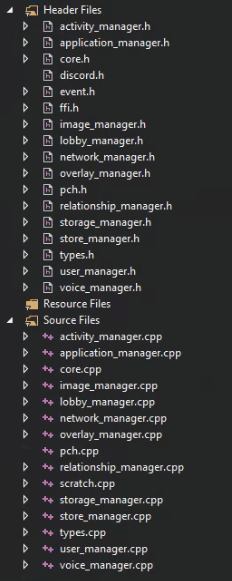
In your project settings, you'll want to include the relevant library (e.g. discord_game_sdk.dll.lib) as an additional dependency.

- From there, you should be able to
#include "discord-files/discord.h", or whatever the path to that header file is, and have access to the code.
Using the SDK
Section titled “Using the SDK”At a high level, the Discord Game SDK has a parent class, Discord.
This class is in charge of the creation of a few "manager" sub-classes to interact with Discord.
Managers
Section titled “Managers”Each manager class contains its own functions and events used to interact with Discord in the context of the manager:
| Name | Description |
|---|---|
ActivityManager |
for Rich Presence and game invites |
OverlayManager |
for interacting with Discord's built-in overlay |
UserManager |
for fetching user data for a given id and the current user |
Using Functions in the SDK
Section titled “Using Functions in the SDK”Most functions in the Discord Game SDK, uh, function in a similar way. They take whatever parameters are required for the function to do its job—a user id, the requested size for an image, etc.—and a callback by means of a function pointer. That callback is fired when the function completes its work, letting you handle events without worrying about piping asynchronously-returned data to the right context.
Some functions behave with a normal return behavior; e.g. RelationshipManager.Count() just returns the number directly. Don't worry, it's outlined in the docs.
Example calling a function with our C# binding
var userManager = discord.GetUserManager();

// Return via callback
userManager.GetUser(290926444748734465, (Discord.Result result, ref Discord.User otherUser) =>
{
  if (result == Discord.Result.Ok)
  {
    Console.WriteLine(otherUser.Username);
    Console.WriteLine(otherUser.Id);
  }
});


// Return normally
userManager.OnCurrentUserUpdate += () =>
{
    var currentUser = userManager.GetCurrentUser();
        Console.WriteLine(currentUser.Username);
        Console.WriteLine(currentUser.Discriminator);
        Console.WriteLine(currentUser.Id);
};
Environment Variables
Section titled “Environment Variables”Discord passes a number of environment variables down to the SDK. These are accessed by various functions in the SDK and can be changed for local testing by changing the value in your local environment.
| name | method | description |
|---|---|---|
| DISCORD_INSTANCE_ID | Local Testing | the locally running instance of Discord to connect to; allows you to choose between multiple running clients |
| DISCORD_ACCESS_TOKEN | ApplicationManager.GetOAuth2Token() | the connected user's bearer token |
| DISCORD_CURRENT_LOCALE | ApplicationManager.GetCurrentLocale() | the language that Discord is in for the connected user |
| DISCORD_CURRENT_BRANCH | ApplicationManager.GetCurrentBranch() | the branch of the running application that the user has launched |
Error Handling
Section titled “Error Handling”Debugging is a pain, so before we get into the meat of the SDK, we want to make sure you're prepared for when things go awry. Within the Discord core is a function called SetLogHook(). It takes a level, which is minimum level of log message you want to listen to, and a callback function:
Using SetLogHook for Error Handling in the SDK
public void LogProblemsFunction(Discord.LogLevel level, string message)
{
  Console.WriteLine("Discord:{0} - {1}", level, message);
}

discord.SetLogHook(Discord.LogLevel.Debug, LogProblemsFunction);
You should begin your integration by setting up this callback to help you debug. Helpfully, if you put a breakpoint inside the callback function you register here, you'll be able to see the stack trace for errors you run into (as long as they fail synchronously). Take the guess work out of debugging, or hey, ignore any and all logging by setting a callback that does nothing. We're not here to judge.
Testing Locally
Section titled “Testing Locally”While integrating the Discord Game SDK, you will probably find yourself wanting to test functionality between two game clients locally, be it for networking, Rich Presence, etc.
We know that getting a test build of a game on two separate machines can be both difficult and cumbersome. So, we've got a solution for you!
How do I test locally while developing?
By using system environment variables, you can tell the SDK in a certain game client to connect to a specific Discord client. Here's how it works:
- Download Discord Canary. This is our most updated build, and is good to develop against: Windows - Mac
- Download a second Discord Build. Here's our Public Test Build: Windows - Mac
- Open up two Discord clients. We recommend you develop against Discord Canary, so you can use PTB or Stable for your test account
- Log in with two separate users. Make sure any test account is added to the application's App Whitelist in the portal!
Now, in your game code, you can tell the SDK which client to connect to via the environment variable DISCORD_INSTANCE_ID before initializing the SDK. The value of the variable corresponds to the order in which you opened the clients, so 0 would connect to the first opened client, 1 the second, etc.
Environment Variable Example
// This machine opened Discord Canary first, and Discord PTB second

// This makes the SDK connect to Canary
System.Environment.SetEnvironmentVariable("DISCORD_INSTANCE_ID", "0");
var discord = new Discord(applicationId, Discord.CreateFlags.Default);

// This makes the SDK connect to PTB
System.Environment.SetEnvironmentVariable("DISCORD_INSTANCE_ID", "1");
var discord = new Discord(applicationId, Discord.CreateFlags.Default);
This will set the environment variable only within the context of the running process, so don't worry about messing up global stuff.
Data Models
Section titled “Data Models”Result Enum
Section titled “Result Enum”Codes and Values for the Result Enum
| Code | value | description |
|---|---|---|
| 0 | Ok | everything is good |
| 1 | ServiceUnavailable | Discord isn't working |
| 2 | InvalidVersion | the SDK version may be outdated |
| 3 | LockFailed | an internal error on transactional operations |
| 4 | InternalError | something on our side went wrong |
| 5 | InvalidPayload | the data you sent didn't match what we expect |
| 6 | InvalidCommand | that's not a thing you can do |
| 7 | InvalidPermissions | you aren't authorized to do that |
| 8 | NotFetched | couldn't fetch what you wanted |
| 9 | NotFound | what you're looking for doesn't exist |
| 10 | Conflict | user already has a network connection open on that channel |
| 11 | InvalidSecret | activity secrets must be unique and not match party id |
| 12 | InvalidJoinSecret | join request for that user does not exist |
| 13 | NoEligibleActivity | you accidentally set an ApplicationId in your UpdateActivity() payload |
| 14 | InvalidInvite | your game invite is no longer valid |
| 15 | NotAuthenticated | the internal auth call failed for the user, and you can't do this |
| 16 | InvalidAccessToken | the user's bearer token is invalid |
| 17 | ApplicationMismatch | access token belongs to another application |
| 18 | InvalidDataUrl | something internally went wrong fetching image data |
| 19 | InvalidBase64 | not valid Base64 data |
| 20 | NotFiltered | you're trying to access the list before creating a stable list with Filter() |
| 21 | LobbyFull | the lobby is full |
| 22 | InvalidLobbySecret | the secret you're using to connect is wrong |
| 23 | InvalidFilename | file name is too long |
| 24 | InvalidFileSize | file is too large |
| 25 | InvalidEntitlement | the user does not have the right entitlement for this game |
| 26 | NotInstalled | Discord is not installed |
| 27 | NotRunning | Discord is not running |
| 28 | InsufficientBuffer | insufficient buffer space when trying to write |
| 29 | PurchaseCancelled | user cancelled the purchase flow |
| 30 | InvalidGuild | Discord guild does not exist |
| 31 | InvalidEvent | the event you're trying to subscribe to does not exist |
| 32 | InvalidChannel | Discord channel does not exist |
| 33 | InvalidOrigin | the origin header on the socket does not match what you've registered (you should not see this) |
| 34 | RateLimited | you are calling that method too quickly |
| 35 | OAuth2Error | the OAuth2 process failed at some point |
| 36 | SelectChannelTimeout | the user took too long selecting a channel for an invite |
| 37 | GetGuildTimeout | took too long trying to fetch the guild |
| 38 | SelectVoiceForceRequired | push to talk is required for this channel |
| 39 | CaptureShortcutAlreadyListening | that push to talk shortcut is already registered |
| 40 | UnauthorizedForAchievement | your application cannot update this achievement |
| 41 | InvalidGiftCode | the gift code is not valid |
| 42 | PurchaseError | something went wrong during the purchase flow |
| 43 | TransactionAborted | purchase flow aborted because the SDK is being torn down |
LogLevel Enum
Section titled “LogLevel Enum”Values for the LogLevel Enum
| value | description |
|---|---|
| Error | Log only errors |
| Warning | Log warnings and errors |
| Info | Log info, warnings, and errors |
| Debug | Log all the things! |
CreateFlags Enum
Section titled “CreateFlags Enum”Values for the CreateFlags Enum
| value | description |
|---|---|
| Default | Requires Discord to be running to play the game |
| NoRequireDiscord | Does not require Discord to be running, use this on other platforms |
Functions
Section titled “Functions”Create
Section titled “Create”Creates an instance of Discord to initialize the SDK. This is the overlord of all things Discord. We like to call her Nelly.
Returns a new Discord.
Parameters
Section titled “Parameters”| name | type | description |
|---|---|---|
| clientId | Int64 | your application's client id |
| flags | CreateFlags | the creation parameters for the SDK, outlined above |
Example
Section titled “Example”// c++ land
discord::Core* core{};
discord::Core::Create(53908232506183680, DiscordCreateFlags_Default, &core);
// c# land
var discord = new Discord(53908232506183680, (UInt64)Discord.CreateFlags.Default);Destroy
Section titled “Destroy”Destroys the instance. Wave goodbye, Nelly! You monster. In C# land, this is Dispose().
Returns void.
Example
Section titled “Example”discord.Dispose();SetLogHook
Section titled “SetLogHook”Registers a logging callback function with the minimum level of message to receive. The callback function should have a signature of:
MyCallbackFunction(LogLevel level, string message);Returns void.
Parameters
Section titled “Parameters”| name | type | description |
|---|---|---|
| level | LogLevel | the minimum level of event to log |
| callback | function | the callback function to catch the messages |
Example
Section titled “Example”public void LogProblemsFunction(Discord.LogLevel level, string message)
{
Console.WriteLine("Discord:{0} - {1}", level, message);
}
discord.SetLogHook(Discord.LogLevel.Debug, LogProblemFunctions);RunCallbacks
Section titled “RunCallbacks”Runs all pending SDK callbacks. Put this in your game's main event loop, like Update() in Unity. That way, the first thing your game does is check for any new info from Discord.
This function also serves as a way to know that the local Discord client is still connected. If the user closes Discord while playing your game, RunCallbacks() will return/throw Discord.Result.NotRunning.
In C and C++, this function returns Discord.Result. In C#, it returns void and will throw Discord.Result error if something went wrong.
Example
Section titled “Example”void Update()
{
discord.RunCallbacks();
}GetActivityManager
Section titled “GetActivityManager”Fetches an instance of the manager for interfacing with activities in the SDK.
Returns an ActivityManager.
Example
Section titled “Example”var activityManager = discord.GetActivityManager();GetUserManager
Section titled “GetUserManager”Fetches an instance of the manager for interfacing with users in the SDK.
Returns an UserManager.
Example
Section titled “Example”var userManager = discord.GetUserManager();GetOverlayManager
Section titled “GetOverlayManager”Fetches an instance of the manager for interfacing with the overlay in the SDK.
Returns an OverlayManager.
Example
Section titled “Example”var overlayManager = discord.GetOverlayManager();Activities
Section titled “Activities”Looking to integrate Rich Presence into your game? No need to manage multiple SDKs—this one does all that awesome stuff, too! Delight your players with the ability to post game invites in chat and party up directly from Discord. Surface interesting live game data in their profile for their friends, encouraging them to group up and play together.
For more detailed information and documentation around the Rich Presence feature set and integration tips, check out our Rich Presence Documentation.
Data Models
Section titled “Data Models”User Struct
Section titled “User Struct”| name | type | description |
|---|---|---|
| id | Int64 | the user's id |
| username | string | their name |
| discriminator | string | the user's unique discrim |
| avatar | string | the hash of the user's avatar |
| bot | bool | if the user is a bot user |
Activity Struct
Section titled “Activity Struct”| name | type | description |
|---|---|---|
| applicationId | Int64 | your application id - this is a read-only field |
| name | string | name of the application - this is a read-only field |
| state | string | the player's current party status |
| details? | ?string | what the player is currently doing |
| timestamps? | ?ActivityTimestamps | helps create elapsed/remaining timestamps on a player's profile |
| assets? | ?ActivityAssets | assets to display on the player's profile |
| party? | ?ActivityParty | information about the player's party |
| secrets? | ?ActivitySecrets | secret passwords for joining and spectating the player's game |
| instance? | ?bool | whether this activity is an instanced context, like a match |
ActivityTimestamps Struct
Section titled “ActivityTimestamps Struct”| name | type | description |
|---|---|---|
| start? | ?Int64 | unix timestamp - send this to have an "elapsed" timer |
| end? | ?Int64 | unix timestamp - send this to have a "remaining" timer |
ActivityAssets Struct
Section titled “ActivityAssets Struct”| name | type | description |
|---|---|---|
| largeImage? | ?string | see Activity Asset Image |
| largeText? | ?string | hover text for the large image |
| smallImage? | ?string | see Activity Asset Image |
| smallText? | ?string | hover text for the small image |
ActivityParty Struct
Section titled “ActivityParty Struct”| name | type | description |
|---|---|---|
| id | string | a unique identifier for this party |
| size | PartySize | info about the size of the party |
PartySize Struct
Section titled “PartySize Struct”| name | type | description |
|---|---|---|
| currentSize | Int32 | the current size of the party |
| maxSize | Int32 | the max possible size of the party |
ActivitySecrets Struct
Section titled “ActivitySecrets Struct”| name | type | description |
|---|---|---|
| match? | ?string | unique hash for the given match context |
| join? | ?string | unique hash for chat invites and Ask to Join |
| spectate? | ?string | unique hash for Spectate button |
ActivityType Enum
Section titled “ActivityType Enum”| name | Value |
|---|---|
| Playing | 0 |
| Streaming | 1 |
| Listening | 2 |
| Watching | 3 |
| Custom | 4 |
| Competing | 5 |
For more details about the activity types, see Gateway documentation.
ActivityType is strictly for the purpose of handling events that you receive from Discord; though the SDK will not reject a payload with an ActivityType sent, it will be discarded and will not change anything in the client.
ActivityJoinRequestReply Enum
Section titled “ActivityJoinRequestReply Enum”| name | value |
|---|---|
| No | 0 |
| Yes | 1 |
| Ignore | 2 |
ActivityActionType Enum
Section titled “ActivityActionType Enum”| name | value |
|---|---|
| Join | 1 |
| Spectate | 2 |
Activity Action Field Requirements
Section titled “Activity Action Field Requirements”If you want to hook up joining and spectating for your games, there are certain fields in the activity payload that need to be sent. Refer to the following handy table for what needs to be set for certain actions.
Activity Action Field Requirements
| Field | Custom Artwork | Spectate | Join | Ask to Join |
|---|---|---|---|---|
| State | ||||
| Details | ||||
| ActivityTimestamps.start | ||||
| ActivityTimestamps.end | ||||
| ActivityAssets.largeImage | x | |||
| ActivityAssets.smallImage | x | |||
| ActivityAssets.largeText | x | |||
| ActivityAssets.smallText | x | |||
| ActivityParty.id | x | x | ||
| ActivityParty.size.currentSize | x | x | ||
| ActivityParty.size.maxSize | x | x | ||
| ActivitySecrets.join | x | x | ||
| ActivitySecrets.spectate | x |
Functions
Section titled “Functions”RegisterCommand
Section titled “RegisterCommand”Registers a command by which Discord can launch your game. This might be a custom protocol, like my-awesome-game://, or a path to an executable. It also supports any launch parameters that may be needed, like game.exe --full-screen --no-hax.
On macOS, due to the way Discord registers executables, your game needs to be bundled for this command to work. That means it should be a .app.
Returns void.
Parameters
Section titled “Parameters”| name | type | description |
|---|---|---|
| command | string | the command to register |
Example
Section titled “Example”activityManager.RegisterCommand("my-awesome-game://run --full-screen");RegisterSteam
Section titled “RegisterSteam”Used if you are distributing this SDK on Steam. Registers your game's Steam app id for the protocol steam://run-game-id/<id>.
Returns void.
Parameters
Section titled “Parameters”| name | type | description |
|---|---|---|
| steamId | UInt32 | your game's Steam app id |
Example
Section titled “Example”activityManager.RegisterSteam(1938123);UpdateActivity
Section titled “UpdateActivity”Sets a user's presence in Discord to a new activity. This has a rate limit of 5 updates per 20 seconds.
Returns a Discord.Result via callback.
Parameters
Section titled “Parameters”| name | type | description |
|---|---|---|
| activity | Activity | the new activity for the user |
Example
Section titled “Example”UpdateActivity Example
var activity = new Discord.Activity
{
  State = "In Play Mode",
  Details = "Playing the Trumpet!",
  Timestamps =
  {
      Start = 5,
  },
  Assets =
  {
      LargeImage = "foo largeImageKey", // Larger Image Asset Value
      LargeText = "foo largeImageText", // Large Image Tooltip
      SmallImage = "foo smallImageKey", // Small Image Asset Value
      SmallText = "foo smallImageText", // Small Image Tooltip
  },
  Party =
  {
      Id = "foo partyID",
      Size = {
          CurrentSize = 1,
          MaxSize = 4,
      },
  },
  Secrets =
  {
      Match = "foo matchSecret",
      Join = "foo joinSecret",
      Spectate = "foo spectateSecret",
  },
  Instance = true,
};

activityManager.UpdateActivity(activity, (result) =>
{
    if (result == Discord.Result.Ok)
    {
        Console.WriteLine("Success!");
    }
    else
    {
        Console.WriteLine("Failed");
    }
});
ClearActivity
Section titled “ClearActivity”Clear's a user's presence in Discord to make it show nothing.
Results a Discord.Result via callback.
Example
Section titled “Example”ClearActivity Example
activityManager.ClearActivity((result) =>
{
    if (result == Discord.Result.Ok)
    {
        Console.WriteLine("Success!");
    }
    else
    {
        Console.WriteLine("Failed");
    }
});
SendRequestReply
Section titled “SendRequestReply”Sends a reply to an Ask to Join request.
Returns a Discord.Result via callback.
Parameters
Section titled “Parameters”| name | type | description |
|---|---|---|
| userId | Int64 | the user id of the person who asked to join |
| reply | ActivityJoinRequestReply | No, Yes, or Ignore |
Example
Section titled “Example”SendRequestReply Example
activityManager.OnActivityJoinRequest += user =>
{
    Console.WriteLine("Join request from: {0}", user.Id);
    activityManager.SendRequestReply(user.Id, Discord.ActivityJoinRequestReply.Yes, (res) =>
    {
      if (res == Discord.Result.Ok)
      {
        Console.WriteLine("Responded successfully");
      }
    });
}
SendInvite
Section titled “SendInvite”Sends a game invite to a given user. If you do not have a valid activity with all the required fields, this call will error. See Activity Action Field Requirements for the fields required to have join and spectate invites function properly.
Returns a Discord.Result via callback.
Parameters
Section titled “Parameters”| name | type | description |
|---|---|---|
| userId | Int64 | the id of the user to invite |
| type | ActivityActionType | marks the invite as an invitation to join or spectate |
| content | string | a message to send along with the invite |
Example
Section titled “Example”SendInvite Example
var userId = 53908232506183680;
activityManager.SendInvite(userId, Discord.ActivityActionType.Join, "Come play!", (result) =>
{
    if (result == Discord.Result.Ok)
    {
        Console.WriteLine("Success!");
    }
    else
    {
        Console.WriteLine("Failed");
    }
});
AcceptInvite
Section titled “AcceptInvite”Accepts a game invitation from a given userId.
Returns a Discord.Result via callback.
Parameters
Section titled “Parameters”| name | type | description |
|---|---|---|
| userId | Int64 | the id of the user who invited you |
Example
Section titled “Example”AcceptInvite Example
activityManager.AcceptInvite(290926444748734466, (result) =>
{
    if (result == Discord.Result.Ok)
    {
        Console.WriteLine("Success!");
    }
    else
    {
        Console.WriteLine("Failed");
    }
});
Events
Section titled “Events”OnActivityJoin
Section titled “OnActivityJoin”Fires when a user accepts a game chat invite or receives confirmation from Asking to Join.
Parameters
Section titled “Parameters”| name | type | description |
|---|---|---|
| joinSecret | string | the secret to join the user's game |
Example
Section titled “Example”OnActivityJoin Example
// Received when someone accepts a request to join or invite.
// Use secrets to receive back the information needed to add the user to the group/party/match
activityManager.OnActivityJoin += secret => {
    Console.WriteLine("OnJoin {0}", secret);
    // Now update your internal systems to reflect the user as joined

		// Sends this off to a Activity callback named here as 'UpdateActivity' passing in the discord instance details
    UpdateActivity(discord);
};

void UpdateActivity(Discord.Discord discord)
    {
    	//Creates a Static String for Spectate Secret.
        string discordSpectateSecret = "wdn3kvj320r8vk3";
        spectateActivitySecret = discordSpectateSecret;
        var activity = new Discord.Activity
        {
            State = "Playing Co-Op",
            Details = "In a Multiplayer Match!",
            Timestamps =
            {
                Start = startTimeStamp,
            },
            Assets =
            {
                LargeImage = "matchimage1",
                LargeText = "Inside the Arena!",
            },
            Party = {
                Id = <Party/match/group id here>,
                Size = {
                    CurrentSize = ...,
                    MaxSize = ...,
                },
            },
            Secrets = {
                Spectate = spectateActivitySecret,
                Join = joinActivitySecret,
            },
            Instance = true,
        };

        activityManager.UpdateActivity(activity, result =>
        {
            Debug.LogFormat("Updated to Multiplayer Activity: {0}", result);

            // Send an invite to another user for this activity.
            // Receiver should see an invite in their DM.
            // Use a relationship user's ID for this.
            // activityManager
            //   .SendInvite(
            //       364843917537050624,
            //       Discord.ActivityActionType.Join,
            //       "",
            //       inviteResult =>
            //       {
            //           Console.WriteLine("Invite {0}", inviteResult);
            //       }
            //   );
        });
    }
OnActivitySpectate
Section titled “OnActivitySpectate”Fires when a user accepts a spectate chat invite or clicks the Spectate button on a user's profile.
Parameters
Section titled “Parameters”| name | type | description |
|---|---|---|
| spectateSecret | string | the secret to join the user's game as a spectator |
Example
Section titled “Example”OnActivitySpectate Example
// Received when someone accepts a request to spectate
activityManager.OnActivitySpectate += secret =>
{
    Console.WriteLine("OnSpectate {0}", secret);
};
OnActivityJoinRequest
Section titled “OnActivityJoinRequest”Fires when a user asks to join the current user's game.
Parameters
Section titled “Parameters”| name | type | description |
|---|---|---|
| user | User | the user asking to join |
Example
Section titled “Example”OnActivityJoinRequest Example
// A join request has been received. Render the request on the UI.
activityManager.OnActivityJoinRequest += (ref Discord.User user) =>
{
    Console.WriteLine("OnJoinRequest {0} {1}", user.Username, user.Id);
};
OnActivityInvite
Section titled “OnActivityInvite”Fires when the user receives a join or spectate invite.
Parameters
Section titled “Parameters”| name | type | description |
|---|---|---|
| type | ActivityActiontype | whether this invite is to join or spectate |
| user | User | the user sending the invite |
| activity | Activity | the inviting user's current activity |
Example
Section titled “Example”OnActivityInvite Example
// An invite has been received. Consider rendering the user / activity on the UI.
activityManager.OnActivityInvite += (Discord.ActivityActionType Type, ref Discord.User user, ref Discord.Activity activity2) =>
{
      Console.WriteLine("Received Invite Type: {0}, from User: {1}, with Activity Name: {2}", Type, user.Username, activity2.Name);
      // activityManager.AcceptInvite(user.Id, result =>
      // {
      //     Console.WriteLine("AcceptInvite {0}", result);
      // });
};
Inviting a User to a Game
Section titled “Inviting a User to a Game”Code example for inviting a user to a game
var discord = new Discord.Discord(clientId, Discord.CreateFlags.Default);

// Update user's activity for your game.
// Party and secrets are vital.
var activity = new Discord.Activity
{
  State = "olleh",
  Details = "foo details",
  Timestamps =
  {
      Start = 5,
      End = 6,
  },
  Assets =
  {
      LargeImage = "foo largeImageKey",
      LargeText = "foo largeImageText",
      SmallImage = "foo smallImageKey",
      SmallText = "foo smallImageText",
  },
  Party =
  {
      Id = "foo partyID",
      Size = {
          CurrentSize = 1,
          MaxSize = 4,
      },
  },
  Secrets =
  {
      Match = "foo matchSecret",
      Join = "foo joinSecret",
      Spectate = "foo spectateSecret",
  },
  Instance = true,
};

activityManager.UpdateActivity(activity, (result) =>
{
    Console.WriteLine("Update Activity {0}", result);

    // Send an invite to another user for this activity.
    // Receiver should see an invite in their DM.
    // Use a relationship user's ID for this.
    activityManager.SendInvite(364843917537050999, Discord.ActivityActionType.Join, "", (inviteUserResult) =>
    {
        Console.WriteLine("Invite User {0}", inviteUserResult);
    });
});
Overlay
Section titled “Overlay”Discord comes with an awesome built-in overlay, and you may want to make use of it for your game. This manager will help you do just that! It gives you the current state of the overlay for the user, and allows you to update that state.
Data Models
Section titled “Data Models”ActivityActionType Enum
Section titled “ActivityActionType Enum”| name | value |
|---|---|
| Join | 1 |
| Spectate | 2 |
Functions
Section titled “Functions”IsEnabled
Section titled “IsEnabled”Check whether the user has the overlay enabled or disabled. If the overlay is disabled, all the functionality in this manager will still work. The calls will instead focus the Discord client and show the modal there instead.
Returns a bool.
Example
Section titled “Example”IsEnabled Example
if (!overlaymanager.IsEnabled())
{
  Console.WriteLine("Overlay is not enabled. Modals will be shown in the Discord client instead");
}
IsLocked
Section titled “IsLocked”Check if the overlay is currently locked or unlocked
Example
Section titled “Example”IsLocked Example
if (overlayManager.IsLocked())
{
  overlayManager.SetLocked(true, (res) =>
  {
    Console.WriteLine("Input in the overlay is now accessible again");
  });
}
SetLocked
Section titled “SetLocked”Locks or unlocks input in the overlay. Calling SetLocked(true); will also close any modals in the overlay or in-app from things like IAP purchase flows and disallow input.
Returns Discord.Result via callback.
Parameters
Section titled “Parameters”| name | type | description |
|---|---|---|
| locked | bool | lock or unlock the overlay |
Example
Section titled “Example”SetLocked Example
overlayManager.SetLocked(true, (res) =>
{
  Console.WriteLine("Overlay has been locked and modals have been closed");
});
OpenActivityInvite

Section titled “OpenActivityInvite”Opens the overlay modal for sending game invitations to users, channels, and servers. If you do not have a valid activity with all the required fields, this call will error. See Activity Action Field Requirements for the fields required to have join and spectate invites function properly.
Returns a Discord.Result via callback.
Parameters
Section titled “Parameters”| name | type | description |
|---|---|---|
| type | ActivityActionType | what type of invite to send |
Example
Section titled “Example”OpenActivityInvite Example
overlayManager.OpenActivityInvite(Discord.ActivityActionType.Join, (result) =>
{
  if (result == Discord.Result.Ok)
  {
    Console.WriteLine("User is now inviting others to play!");
  }
});
OpenGuildInvite
Section titled “OpenGuildInvite”Opens the overlay modal for joining a Discord guild, given its invite code. An invite code for a server may look something like fortnite for a verified server—the full invite being discord.gg/fortnite—or something like rjEeUJq for a non-verified server, the full invite being discord.gg/rjEeUJq.
Returns a Discord.Result via callback. Note that a successful Discord.Result response does not necessarily mean that the user has joined the guild. If you want more granular control over and knowledge about users joining your guild, you may want to look into implementing the guilds.join OAuth2 scope in an authorization code grant in conjunction with the Add Guild Members endpoint.
Parameters
Section titled “Parameters”| name | type | description |
|---|---|---|
| code | string | an invite code for a guild |
Example
Section titled “Example”OpenGuildInvite Example
overlayManager.OpenGuildInvite("rjEeUJq", (result) =>
{
  if (result == Discord.Result.Ok)
  {
    Console.WriteLine("Invite was valid.");
  }
});
OpenVoiceSettings
Section titled “OpenVoiceSettings”Opens the overlay widget for voice settings for the currently connected application. These settings are unique to each user within the context of your application. That means that a user can have different favorite voice settings for each of their games!
Screenshot of the Voice Settings modal for an application
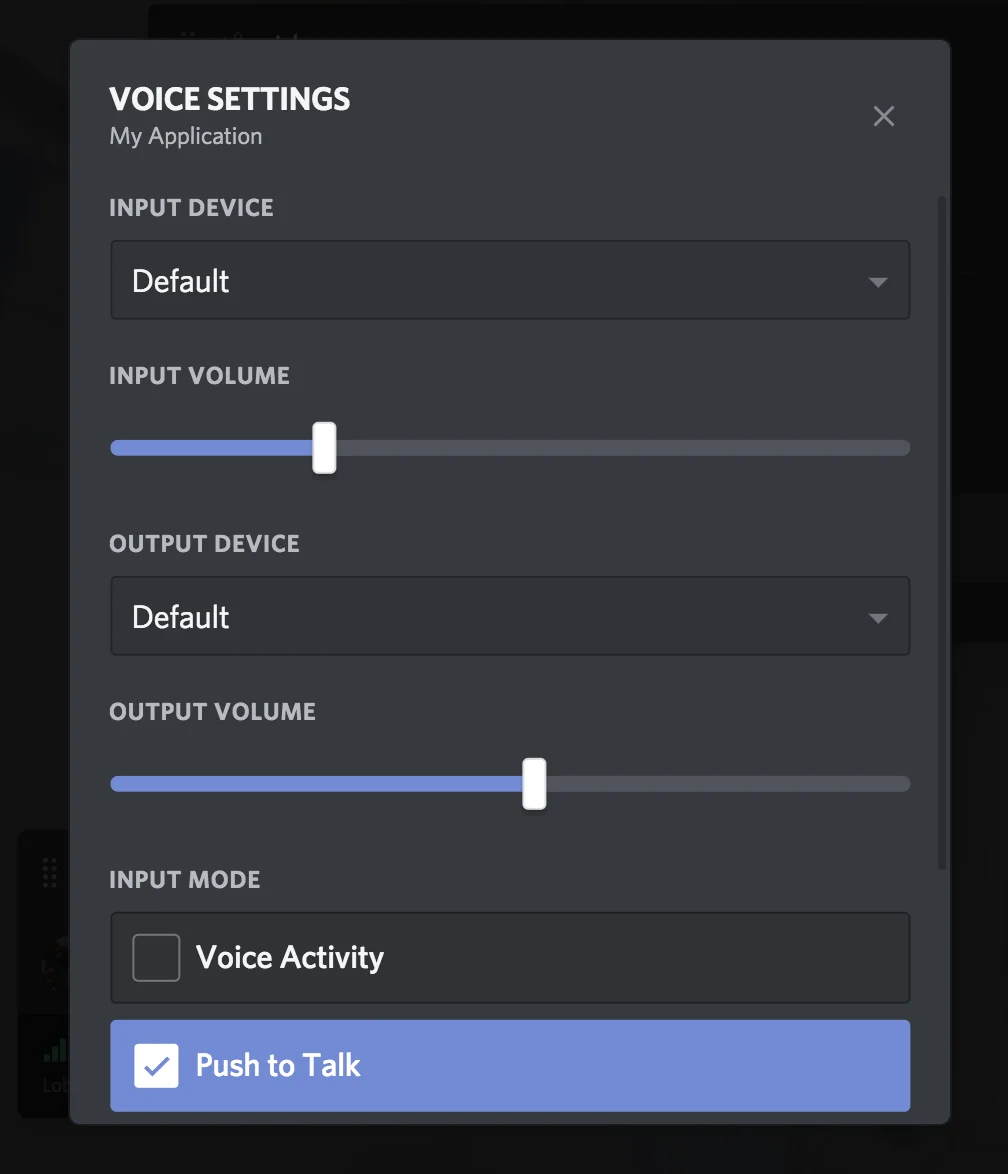
Returns a Discord.Result via callback.
Example
Section titled “Example”OpenVoiceSettings Example
overlayManager.OpenVoiceSettings((result) =>
{
  if (result == Discord.Result.Ok)
  {
    Console.WriteLine("Overlay is open to the voice settings for your application/")
  }
})
OnToggle
Section titled “OnToggle”Fires when the overlay is locked or unlocked (a.k.a. opened or closed)
Parameters
Section titled “Parameters”| name | type | description |
|---|---|---|
| locked | bool | is the overlay now locked or unlocked |
Example
Section titled “Example”OnToggle Example
overlayManager.OnToggle += overlayLock =>
{
    Console.WriteLine("Overlay Locked: {0}", overlayLock);
};
Activate Overlay Invite Modal
Section titled “Activate Overlay Invite Modal”Example activiting overlay invite modal
var discord = new Discord.Discord(clientId, Discord.CreateFlags.Default);
var overlayManager = discord.GetOverlayManager();

// Invite users to join your game
overlayManager.OpenActivityInvite(ActivityActionType.Join, (result) =>
{
  Console.WriteLine("Overlay is now open!");
})
And that invite modal looks like this!
This manager helps retrieve basic user information for any user on Discord.
Data Models
Section titled “Data Models”User Struct
Section titled “User Struct”| name | type | description |
|---|---|---|
| Id | Int64 | the user's id |
| Username | string | their name |
| Discriminator | string | the user's unique discrim |
| Avatar | string | the hash of the user's avatar |
| Bot | bool | if the user is a bot user |
UserFlag Enum
Section titled “UserFlag Enum”| name | value | description |
|---|---|---|
| Partner | 2 | Discord Partner |
| HypeSquadEvents | 4 | HypeSquad Events participant |
| HypeSquadHouse1 | 64 | House Bravery |
| HypeSquadHouse2 | 128 | House Brilliance |
| HypeSquadHouse3 | 256 | House Balance |
PremiumType Enum
Section titled “PremiumType Enum”| name | value | description |
|---|---|---|
| None | 0 | Not a Nitro subscriber |
| Tier1 | 1 | Nitro Classic subscriber |
| Tier2 | 2 | Nitro subscriber |
| Tier3 | 3 | Nitro Basic subscriber |
Functions
Section titled “Functions”GetCurrentUser
Section titled “GetCurrentUser”Fetch information about the currently connected user account. If you're interested in getting more detailed information about a user—for example, their email—check out our GetCurrentUser API endpoint. You'll want to call this with an authorization header of Bearer <token>, where <token> is the token retrieved from a standard OAuth2 Authorization Code Grant flow.
Returns a Discord.User.
Example
Section titled “Example”GetCurrentUser Example
var user = userManager.GetCurrentUser();
Console.WriteLine("Connected to user {0}", user.Id);
GetUser
Section titled “GetUser”Get user information for a given id.
Returns a Discord.Result and ref Discord.User via callback.
Parameters
Section titled “Parameters”| name | type | description |
|---|---|---|
| userId | Int64 | the id of the user to fetch |
Example
Section titled “Example”GetUser Example
userManager.GetUser(userId, (Discord.Result result, ref Discord.User user) =>
{
  if (result == Discord.Result.Ok)
  {
    Console.WriteLine("User {0} is {1}", user.Id, user.Username);
  }
});
GetCurrentUserPremiumType
Section titled “GetCurrentUserPremiumType”Get the PremiumType for the currently connected user.
Returns Discord.PremiumType.
Example
Section titled “Example”CurrentUserHasFlag
Section titled “CurrentUserHasFlag”See whether or not the current user has a certain UserFlag on their account.
Returns bool.
Parameters
Section titled “Parameters”| name | type | description |
|---|---|---|
| flag | UserFlag | the flag to check on the user's account |
Example
Section titled “Example”CurrentUserHasFlag Example
var userManager = discord.GetUserManager();
if (userManager.CurrentUserHasFlag(Discord.UserFlag.HypeSquadHouse1))
{
  Console.WriteLine("User is a member of House Bravery!");
}
Events
Section titled “Events”OnCurrentUserUpdate
Section titled “OnCurrentUserUpdate”Fires when the User struct of the currently connected user changes. They may have changed their avatar, username, or something else.
Example
Section titled “Example”OnCurrentUserUpdate Example
var userManager = discord.GetUserManager();
// GetCurrentUser will error until this fires once.
userManager.OnCurrentUserUpdate += () => {
  var currentUser = userManager.GetCurrentUser();

  Console.WriteLine(currentUser.Username);
  Console.WriteLine(currentUser.Id);
  Console.WriteLine(currentUser.Discriminator);
  Console.WriteLine(currentUser.Avatar);
};
Fetching Data About a Discord User
Section titled “Fetching Data About a Discord User”Example using the Users manager to fetch data about a Discord user
var discord = new Discord.Discord(clientId, Discord.CreateFlags.Default);

var userManager = discord.GetUserManager();
userManager.GetUser(450795363658366976, (Discord.Result result, ref Discord.User user) =>
{
  if (result == Discord.Result.Ok)
  {
    Console.WriteLine("user fetched: {0}", user.Username);
  }
  else
  {
    Console.WriteLine("user fetch error: {0}", result);
  }
});