Managing Your Developer Team
Teams are groups of developers (or other Discord users) who want to collaborate and share access to an app's configuration, management, and payout settings. Go team(s)!
Creating a Team
Section titled “Creating a Team”To create or be a member on a team, you must enable 2FA for your Discord account. After you have 2FA enabled, create a team by navigating to the Teams page then clicking the "New Team" button.
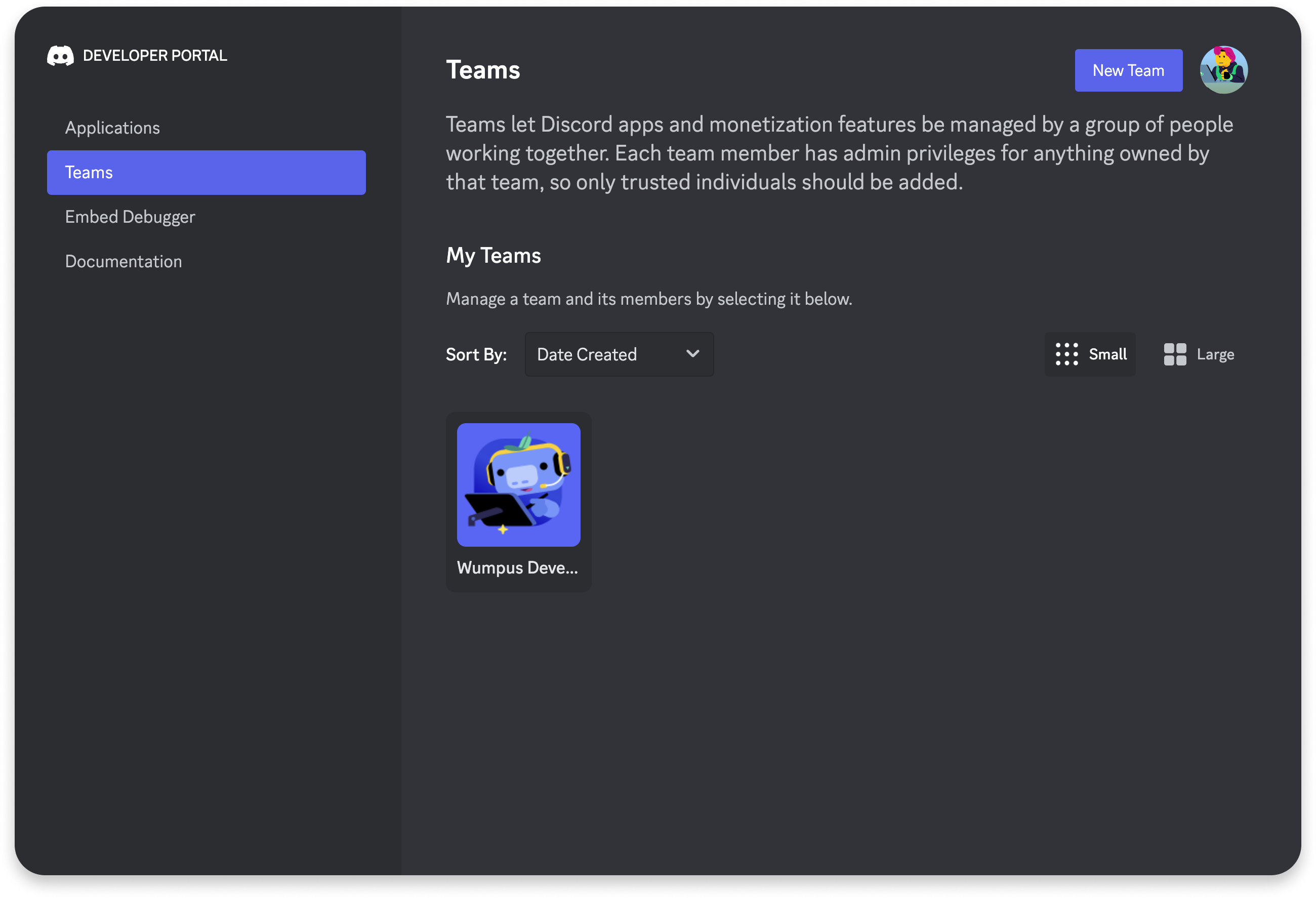
Once you create a team, you'll land on the Team Information page where you can fill out details and start inviting other Discord users to join your team. Since users added to a team have access to any apps that team owns, use caution when adding new team members.
Adding Apps to a Team
Section titled “Adding Apps to a Team”Once your team is set up, you can create or transfer apps that will be owned by the team. Teams can have a maximum of 75 apps.
Creating an App
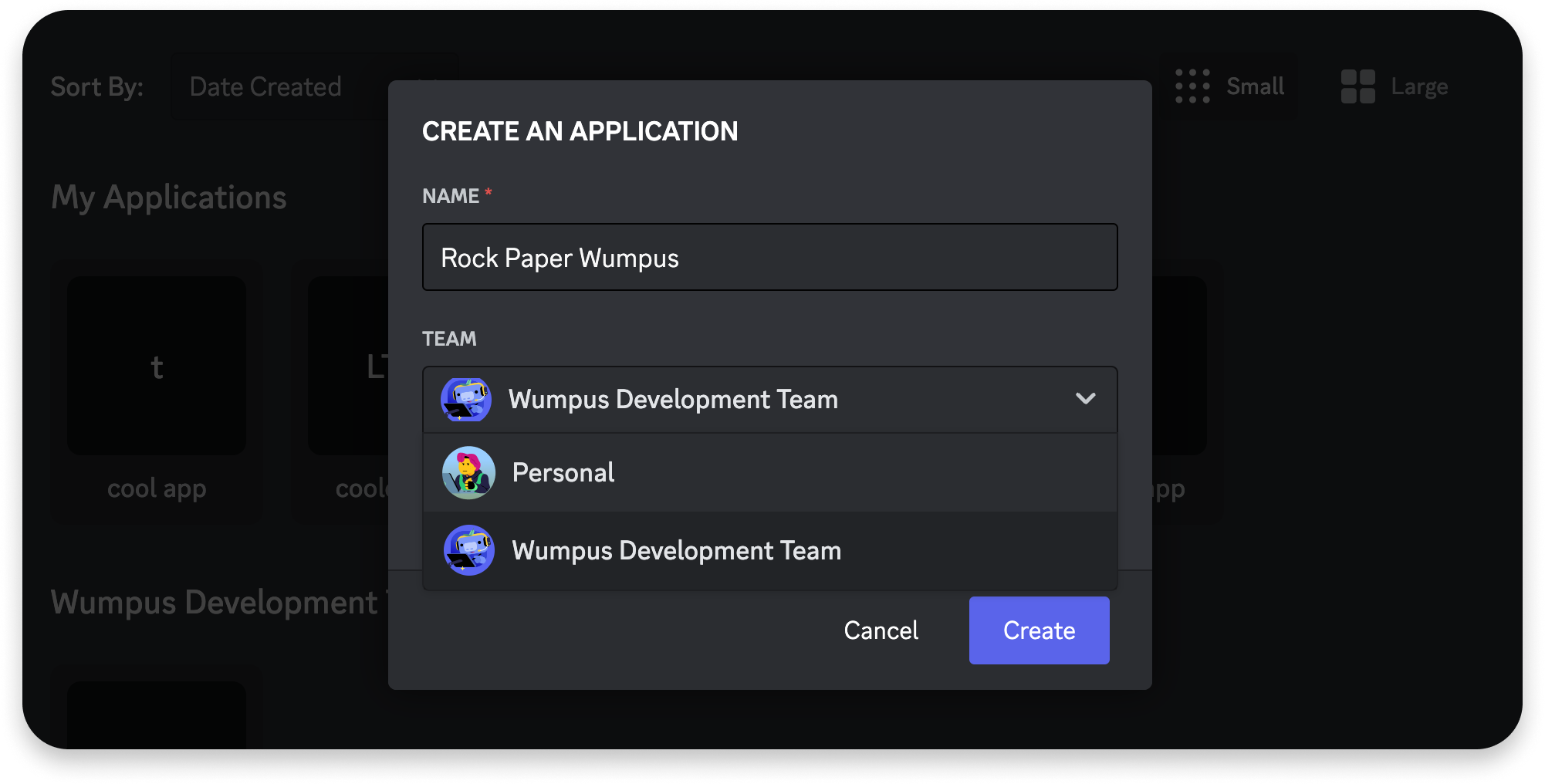
Section titled “Creating an App”To create a new app that belongs to a team, select the team from the Team dropdown in the app creation modal. If you want to keep the app under your own account's ownership, choose Personal:
Transferring an App
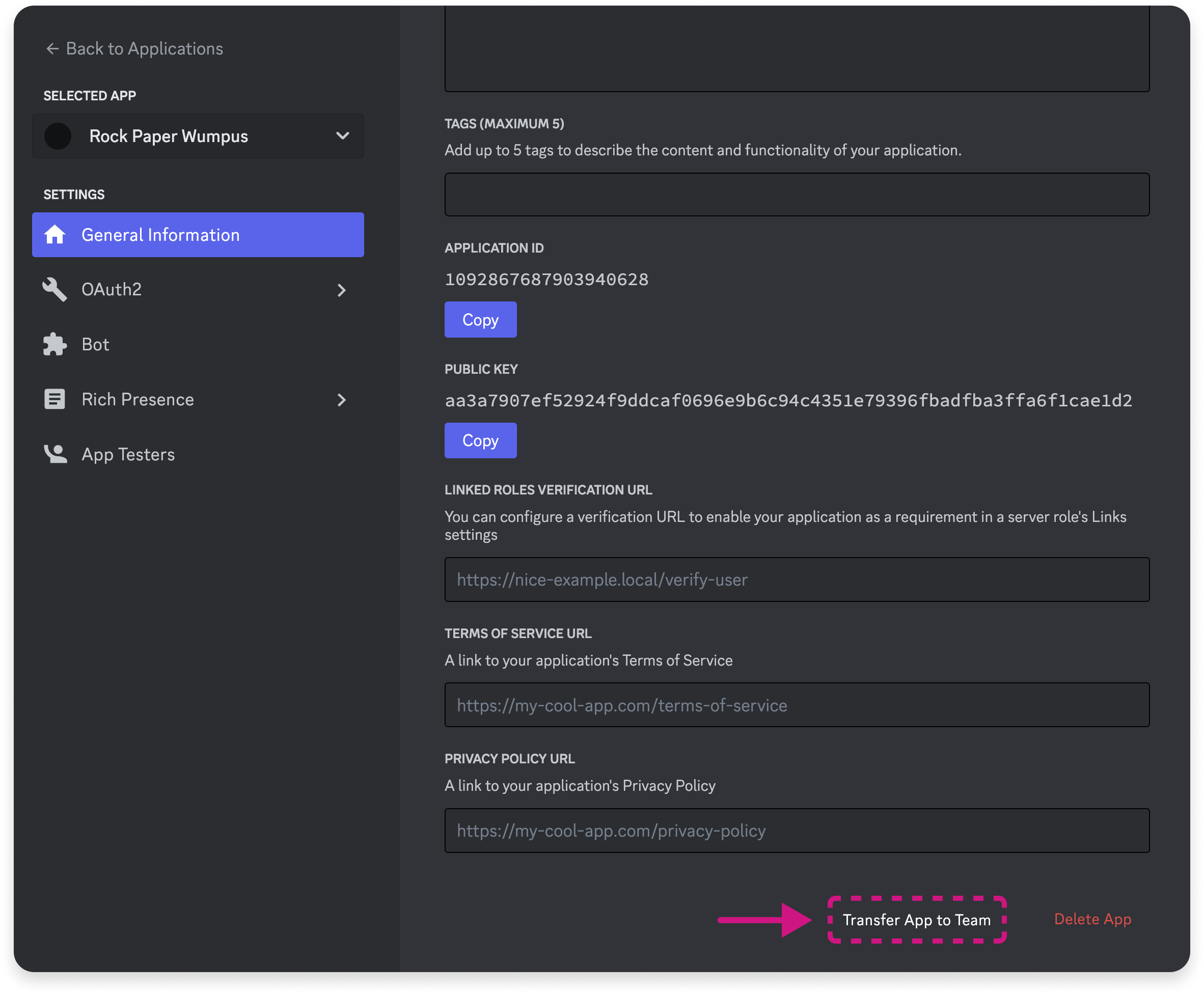
Section titled “Transferring an App”To transfer an existing app to a team, navigate to the Application that you want to transfer. At the bottom of the app's General Information page, click "Transfer App to Team".
Team Member Roles
Section titled “Team Member Roles”Team members can be one of four roles (owner, admin, developer, and read-only), and each role inherits the access of those below it. Roles for team members can be configured under Team Members in a team's settings.
Team Member Role Types
Section titled “Team Member Role Types”| Role Name | Value | Description |
|---|---|---|
| Owner* | Owners are the most permissible role, and can take destructive, irreversible actions like deleting team-owned apps or the team itself. Teams are limited to 1 owner. | |
| Admin | admin | Admins have similar access as owners, except they cannot take destructive actions on the team or team-owned apps. |
| Developer | developer | Developers can access information about team-owned apps, like the client secret or public key. They can also take limited actions on team-owned apps, like configuring interaction endpoints or resetting the bot token. Members with the Developer role cannot manage the team or its members, or take destructive actions on team-owned apps. |
| Read-only | read_only | Read-only members can access information about a team and any team-owned apps. Some examples include getting the IDs of applications and exporting payout records. Members can also invite bots associated with team-owned apps that are marked private. |
* The owner role is not represented in the role field on the team member object. Instead, the owner_user_id field on the team object should be used to identify which user has the owner role for the team.
Data Models
Section titled “Data Models”Team Object
Section titled “Team Object”| field | type | description |
|---|---|---|
| icon | ?string | Hash of the image of the team's icon |
| id | snowflake | Unique ID of the team |
| members | array of team member objects | Members of the team |
| name | string | Name of the team |
| owner_user_id | snowflake | User ID of the current team owner |
Team Member Object
Section titled “Team Member Object”| field | type | description |
|---|---|---|
| membership_state | integer | User's membership state on the team |
| team_id | snowflake | ID of the parent team of which they are a member |
| user | partial user object | Avatar, discriminator, ID, and username of the user |
| role | string | Role of the team member |
Membership State Enum
Section titled “Membership State Enum”| name | value |
|---|---|
| INVITED | 1 |
| ACCEPTED | 2 |