How Do I Get My Game Seen?
Note: This guide was published on March 9th 2026 and was last updated on March 9th 2026.
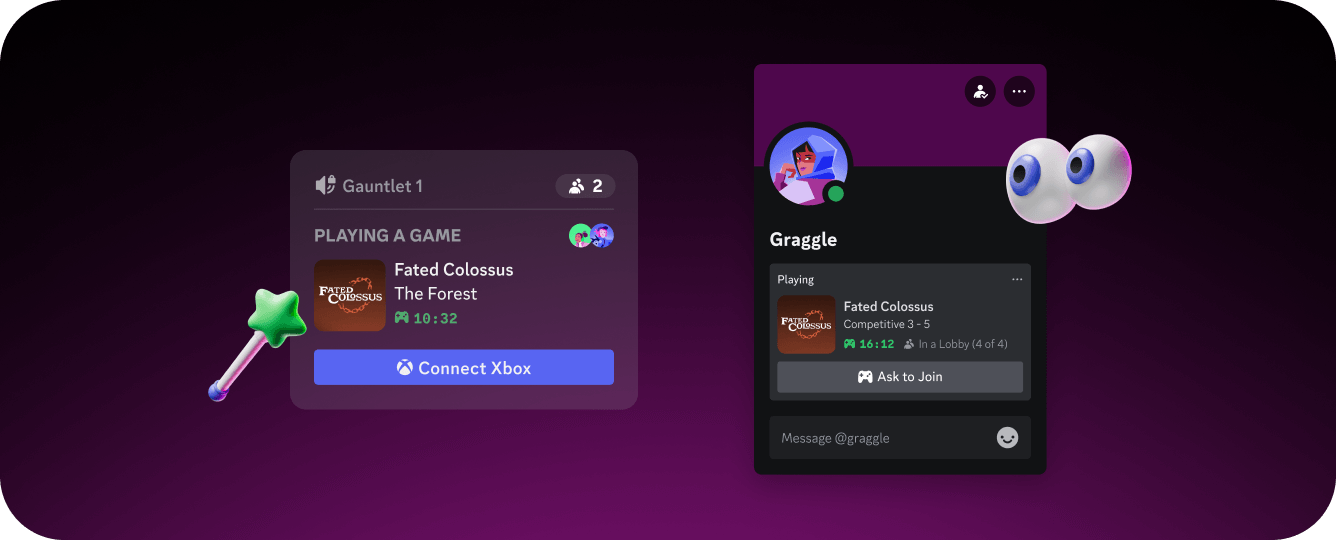
Have you ever seen what a friend is playing in the Discord client? This is called Rich Presence and there are so many ways to use it to get your game seen. When players have activity sharing enabled, Rich Presence lets them show off what they’re playing on their Discord profile. The easier you make it for players to share their activity, the more visibility your game gets across their social graph.
When a player has activity sharing enabled, Discord will automatically detect when they play your game and show them as "Playing" in Rich Presence. You can also customize this UI to include specific details like current mission, party size, or elapsed play time. This information will appear wherever the player’s profile is visible, like in friend lists, server member lists, or profile popups. When a friend sees "Ranked: Diamond II - In Match" on someone's profile, they understand immediately that their friend is fighting their way to the top. If there's a party with open slots, they can join through Rich Presence right in Discord. If they're curious about the game, they can even click through to your store. For multiplayer games, this drastically reduces the coordination friction of getting groups together. For single-player games, this drives organic discovery.
Improving your Rich Presence integration is one of the easiest ways to start getting more value out of Discord. In this article we'll cover everything you need to know to integrate more tightly with Discord and start finding new players.
What can Rich Presence do?
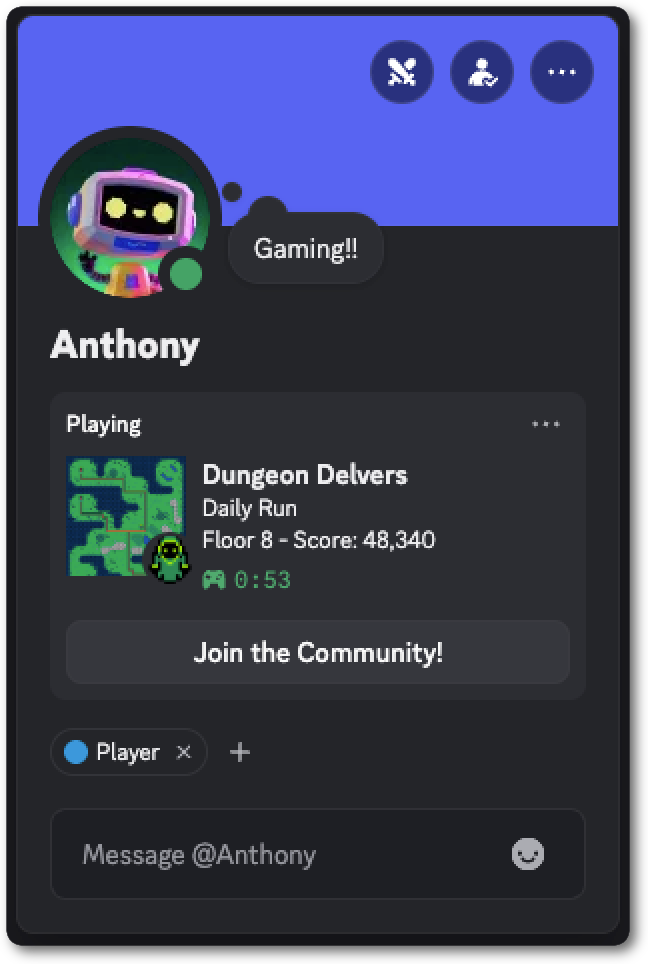
Section titled “What can Rich Presence do?”With Rich Presence you can display things like:
- Player Location: "In Blue Resort"
- Player Status: "In Competitive Match"
- Party information: "In Lobby (2 of 4)"
- Timestamps: How long they've been playing or time remaining in a match
- Custom artwork: Map thumbnails, character portraits, rank icons, and game icons
- Clickable buttons: Links to your store page or community server
This information appears in multiple places across Discord: user profiles, friends lists, and server member lists. Every time a friend checks what someone is up to, they can see rich details about your game.
How to Implement Rich Presence
Section titled “How to Implement Rich Presence”The Discord Social SDK is the recommended way to integrate Rich Presence across C++, Unity, and Unreal. The Social SDK handles Discord authentication and API communication directly. It gives direct access to control a player’s Rich Presence while they’re playing your game. With the full Social SDK integration players can authenticate via Discord and you’ll get access to their friends list, text chat, voice chat, and more.
To get started with controlling Rich Presence for your players, follow our getting started guide for your platform:
The getting started guide walks you through a basic Rich Presence implementation. Once that is in place, the rest of this how-to covers the specific fields and configurations that will make your player’s Rich Presence stand out and get your game seen.
Setting Up Basic Rich Presence
Section titled “Setting Up Basic Rich Presence”After downloading the Social SDK and including it in your game, you can begin with the simplest possible implementation. This code will display your game on the player's Discord profile with custom details and state.
// An Activity is anything a player is doing in Discord
discordpp::Activity activity;

activity.SetType(discordpp::ActivityTypes::Playing);
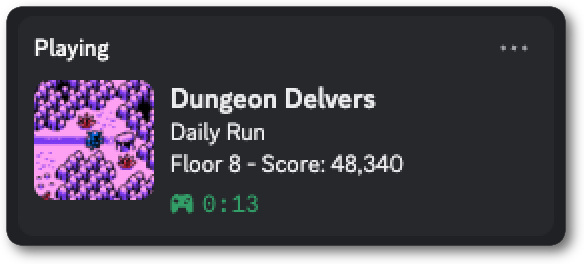
activity.SetDetails("Daily Run");
activity.SetState("Floor 8 - Score: 48,340");

// Update Rich Presence and handle the callback
client->UpdateRichPresence(activity, [](discordpp::ClientResult result) {
    if (result.Successful()) {
        std::cout << "Rich Presence updated!\\n";
    } else {
        std::cerr << "Failed to update Rich Presence\\n";
    }
});// An Activity is anything a player is doing in Discord
Activity activity = new Activity();
activity.SetType(ActivityTypes.Playing);
activity.SetDetails("Daily Run");
activity.SetState("Floor 8 - Score: 48,340");
client.UpdateRichPresence(activity, (ClientResult result) => {
if (result.Successful())
{
Debug.Log("Rich Presence updated!");
}
else
{
Debug.LogError("Failed to update Rich Presence");
}
});// An Activity is anything a player is doing in Discord
UDiscordActivity* Activity = NewObject<UDiscordActivity>();
Activity->Init();
Activity->SetType(EDiscordActivityTypes::Playing);
Activity->SetDetails("Daily Run");
Activity->SetState("Floor 8 - Score: 48,340");
// Update Rich Presence and handle the callback
Discord->Client->UpdateRichPresence(Activity, FDiscordClientUpdateRichPresenceCallback::CreateLambda([](UDiscordClientResult* Result) {
if (Result->Successful()) {
UE_LOG(LogTemp, Log, TEXT("Rich Presence updated!"));
} else {
UE_LOG(LogTemp, Error, TEXT("Failed to update Rich Presence"));
}
}));That's it. With just a few lines of code, your game now shows up on Discord profiles!
Test It!
Section titled “Test It!”Testing Rich Presence is quick:
- Start your game
- Authenticate through the Social SDK
- Return to your game to see authentication was successful
- Check out your profile in Discord!
Telling a story with Rich Presence
Section titled “Telling a story with Rich Presence”The details and state fields are where you can start to make Rich Presence interesting. Think of details as the main activity that the player is doing and state as their current situation.
Keep It Short and Actionable
Section titled “Keep It Short and Actionable”Your strings should be snippets, not sentences. Both details and state should aim for short, snappy text to ensure it displays well across all Discord UI surfaces.
// Good: Clear, concise, informative
activity.SetDetails("Daily Run");
activity.SetState("Floor 8 - Score: 48,340");

// Bad: Too long, gets cut off
activity.SetDetails("Daily Run March 7th 2026");
activity.SetState("Floor 8 (Jungle) - Score: 48,340");
Make It Dynamic
Section titled “Make It Dynamic”Dynamic text creates curiosity, update Rich Presence as the player progresses.
// Starting a new game
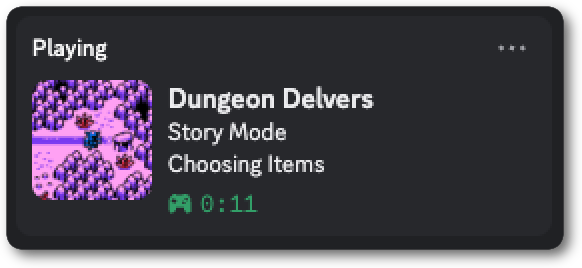
activity.SetDetails("Story Mode");
activity.SetState("Choosing Items");

// Playing through the first level
activity.SetDetails("Dungeon");
activity.SetState("Floor 1");

// Fighting the boss
activity.SetDetails("Dungeon");
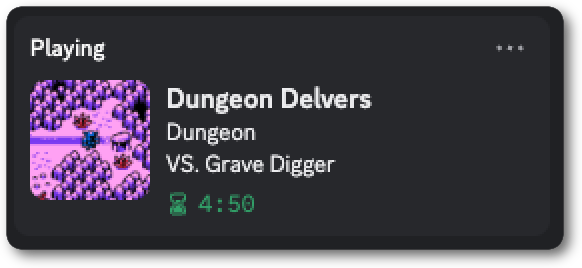
activity.SetState("VS. Grave Digger");

// The story continues!
activity.SetDetails("Lost Jungle");
activity.SetState("Floor ?");
Adding Action With Activity Type
Section titled “Adding Action With Activity Type”Your player might be doing more than just playing your game. Activity types give you a little more flexibility to what action displays in a player’s Rich Presence. By default the type will be Playing and your players will see “Playing” in their Rich Presence. Maybe you have a sound room in your game and you want to show that your player is “Listening” to a song. You could also add a link to buy the soundtrack to your game or a link to that exact song on a streaming platform. Here are some of the activity types you can choose from:
activity.SetType(discordpp::ActivityTypes::Playing);
activity.SetType(discordpp::ActivityTypes::Competing);
activity.SetType(discordpp::ActivityTypes::Listening);
activity.SetType(discordpp::ActivityTypes::Streaming);
activity.SetType(discordpp::ActivityTypes::Watching);activity.SetType(ActivityTypes.Playing);
activity.SetType(ActivityTypes.Competing);
activity.SetType(ActivityTypes.Listening);
activity.SetType(ActivityTypes.Streaming);
activity.SetType(ActivityTypes.Watching);Activity->SetType(EDiscordActivityTypes::Playing);
Activity->SetType(EDiscordActivityTypes::Competing);
Activity->SetType(EDiscordActivityTypes::Listening);
Activity->SetType(EDiscordActivityTypes::Streaming);
Activity->SetType(EDiscordActivityTypes::Watching);Just like details and state , activity type helps paint a better picture of what your player is doing in your game.
Adding Timestamps
Section titled “Adding Timestamps”Timestamps show elapsed time or countdown timers, adding more context to the Rich Presence. Timestamps can help communicate a sense of urgency or excitement around a player's activity, for example a countdown can help subtly communicate a tense moment They can also help show the duration of play which could communicate the length of a boss fight or raid. Elapsed time can also act as social proof showing player's commitment to long gaming marathons.
Elapsed Time (How Long Your Player Has Been Doing X)
Section titled “Elapsed Time (How Long Your Player Has Been Doing X)”discordpp::ActivityTimestamps timestamps;
timestamps.SetStart(time(nullptr)); // Passing in nullptr means the timer starts now
activity.SetTimestamps(timestamps); // Result: "🎮 2:30" counting upActivityTimestamps activityTimestamp = new ActivityTimestamps();
activityTimestamp.SetStart((ulong)System.DateTimeOffset.UtcNow.ToUnixTimeMilliseconds());
activity.SetTimestamps(activityTimestamp); // Result: "🎮 2:30" counting upUDiscordActivityTimestamps* Timestamps = NewObject<UDiscordActivityTimestamps>();
Timestamps->Init();
Timestamps->SetStart(FDateTime::UtcNow().ToUnixTimestamp()); // Passing current time means the timer starts now
Activity->SetTimestamps(Timestamps); // Result: "🎮 2:30" counting upTimers work great for:
- Showing how long a player has been fighting a boss or in a raid
- Showing the length of a speedrun attempt
- Showing how long a competitive match has been fought in
Countdown Timer (Time Remaining)
Section titled “Countdown Timer (Time Remaining)”discordpp::ActivityTimestamps timestamps;
timestamps.SetEnd(time(nullptr) + (1000 * 60 * 5)); // 5 minutes in milliseconds
activity.SetTimestamps(timestamps); // Result: "⌛ 4:59" counting downActivityTimestamps activityTimestamp = new ActivityTimestamps();
activityTimestamp.SetEnd((ulong)System.DateTimeOffset.UtcNow.AddMinutes(5).ToUnixTimeMilliseconds());
activity.SetTimestamps(activityTimestamp); // Result: "⌛ 4:59" counting downUDiscordActivityTimestamps* Timestamps = NewObject<UDiscordActivityTimestamps>();
Timestamps->Init();
Timestamps->SetEnd(FDateTime::UtcNow().ToUnixTimestamp() + (1000 * 60 * 5)); // 5 minutes in milliseconds
Activity->SetTimestamps(Timestamps); // Result: "⌛ 4:59" counting downCountdown timers work great for:
- Showing the time remaining in a competitive match
- Counting down the time until an event starts
- Showing tense moments like challenges with a time limit or a boss fight
Custom Images and Assets
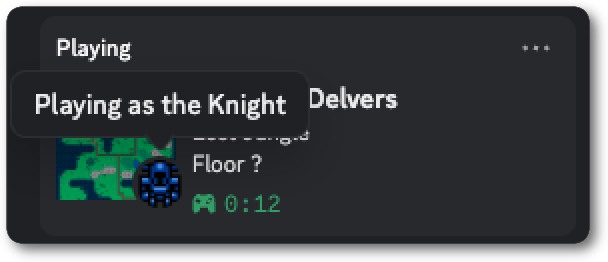
Section titled “Custom Images and Assets”Aside from text, images can also be added to make your Rich Presence stand out with even more visual flair. By default Discord will display your game’s App Icon from the Developer Portal. You can customize the large image and add a small image that overlaps it through the Social SDK. Think of a large image as the main focal point, a map, seasonal version of your game’s icon, or even an image representing the player’s current location. The small image overlaps the main image and gives a little more context like the player’s rank, character, or class. Both of these images can have tooltips on hover. There are two ways to set images in Rich Presence either by uploading assets in the Developer Portal or dynamically through URLs.
Uploading Assets
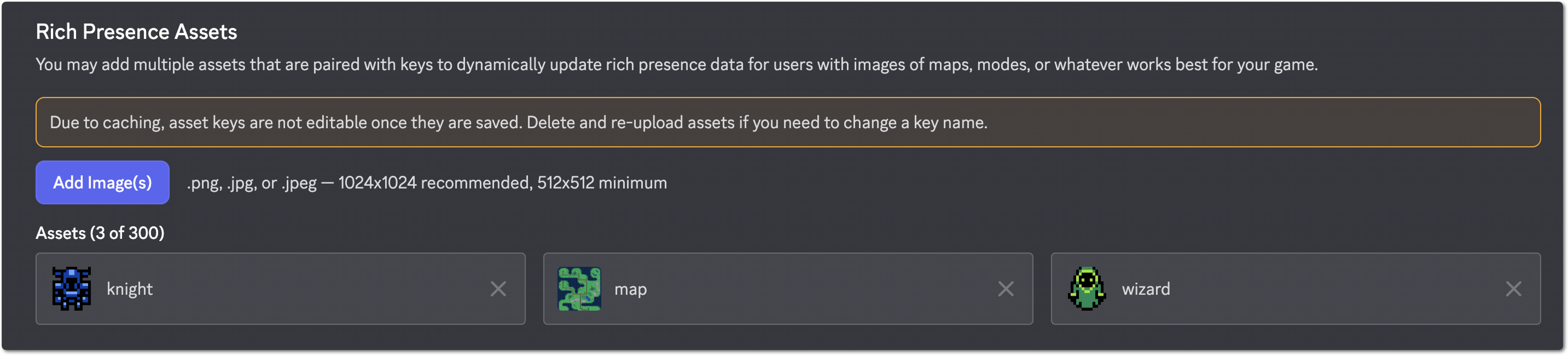
Section titled “Uploading Assets”- Go to the Rich Presence Art Asset for your application in the Discord Developer Portal
- Upload your images and give them a name (1024x1024 pixels highly recommended for crisp images on all platforms)
Using Assets in Code
Section titled “Using Assets in Code”In the code you refer to each image by the name you gave it. You can also provide text as a tooltip that will show when other players hover over that image in Rich Presence.
discordpp::ActivityAssets assets;

assets.SetLargeImage("map"); // Asset key from portal
assets.SetLargeText("Lost Jungle map"); // Tooltip on hover

assets.SetSmallImage("knight");
assets.SetSmallText("Playing as the Knight");

activity.SetAssets(assets);ActivityAssets assets = new ActivityAssets();
assets.SetLargeImage("map"); // Asset key from portal
assets.SetLargeText("Lost Jungle map"); // Tooltip on hover
assets.SetSmallImage("knight");
assets.SetSmallText("Playing as the Knight");
activity.SetAssets(assets);UDiscordActivityAssets* Assets = NewObject<UDiscordActivityAssets>();
Assets->Init();
Assets->SetLargeImage("map"); // Asset key from portal
Assets->SetLargeText("Lost Jungle map"); // Tooltip on hover
Assets->SetSmallImage("knight");
Assets->SetSmallText("Playing as the Knight");
Activity->SetAssets(Assets);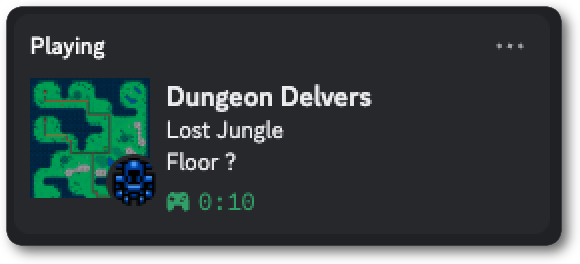
Using External URLs
Section titled “Using External URLs”If you need to use more than 300 assets or want to use dynamically created images, you can use external URLs to set images in Rich Presence:
discordpp::ActivityAssets assets;

assets.SetLargeImage("https://your-game-url.com/maps/313248.png");
assets.SetSmallImage("https://your-game-url.com/player/8142039/character.png");

activity.SetAssets(assets);ActivityAssets assets = new ActivityAssets();
assets.SetLargeImage("https://your-game-url.com/maps/313248.png");
assets.SetSmallImage("https://your-game-url.com/player/8142039/character.png");
activity.SetAssets(assets);UDiscordActivityAssets* Assets = NewObject<UDiscordActivityAssets>();
Assets->Init();
Assets->SetLargeImage("https://your-game-url.com/maps/313248.png");
Assets->SetSmallImage("https://your-game-url.com/player/8142039/character.png");
Activity->SetAssets(Assets);Some use cases for dynamic images:
- A player’s custom character
- A team icon
- A player’s customizable favorite item, pet, or character
- A unique, generated map
Making Rich Presence Interactive with URLs and Buttons
Section titled “Making Rich Presence Interactive with URLs and Buttons”Rich Presence fields can be made clickable by adding URLs. This lets you link details, state, and images to things like your store page, community server, leaderboards, wiki, or more.
Making Details and State Clickable
Section titled “Making Details and State Clickable”You can add URLs to make your details and state text clickable:
activity.SetDetails("Co-op");
activity.SetDetailsUrl("https://your-game-url.com/stream/party-id");

activity.SetState("Floor 7 - Score: 21,200");
activity.SetStateUrl("https://your-game-url.com/stream/party-id");activity.SetDetails("Co-op");
activity.SetDetailsUrl("https://your-game-url.com/stream/party-id");
activity.SetState("Floor 7 - Score: 21,200");
activity.SetStateUrl("https://your-game-url.com/stream/party-id");Activity->SetDetails("Co-op");
Activity->SetDetailsUrl("https://your-game-url.com/stream/party-id");
Activity->SetState("Floor 7 - Score: 21,200");
Activity->SetStateUrl("https://your-game-url.com/stream/party-id");Adding URLs to Images
Section titled “Adding URLs to Images”You can also add URLs to your large and small images to make them clickable:
discordpp::ActivityAssets assets;

assets.SetLargeImage("map");
assets.SetLargeText("Lost Jungle map");
assets.SetLargeUrl("https://your-game-url.com/wiki/maps/lost-jungle");

assets.SetSmallImage("knight");
assets.SetSmallText("Playing as the Knight");
assets.SetSmallUrl("https://your-game-url.com/wiki/characters/knight");

activity.SetAssets(assets);ActivityAssets assets = new ActivityAssets();
assets.SetLargeImage("map");
assets.SetLargeText("Lost Jungle map");
assets.SetLargeUrl("https://your-game-url.com/wiki/maps/lost-jungle");
assets.SetSmallImage("knight");
assets.SetSmallText("Playing as the Knight");
assets.SetSmallUrl("https://your-game-url.com/wiki/characters/knight");
activity.SetAssets(assets);UDiscordActivityAssets* Assets = NewObject<UDiscordActivityAssets>();
Assets->Init();
Assets->SetLargeImage("map");
Assets->SetLargeText("Lost Jungle map");
Assets->SetLargeUrl("https://your-game-url.com/wiki/maps/lost-jungle");
Assets->SetSmallImage("knight");
Assets->SetSmallText("Playing as the Knight");
Assets->SetSmallUrl("https://your-game-url.com/wiki/characters/knight");
Activity->SetAssets(Assets);Adding Buttons to Rich Presence
Section titled “Adding Buttons to Rich Presence”It’s also possible to add up to two buttons to a player’s Rich Presence. Buttons have a label and a URL which you can use to show a direct call to action to anyone viewing it. Use this to link out to your game’s website, a store to purchase your game, or even your community server. Adding a button is quick:
discordpp::ActivityButton buyButton;

buyButton.SetLabel("Buy On Steam!");
buyButton.SetUrl("https://store.steampowered.com/app/AppID/GameName/");

discordpp::ActivityButton communityButton;

communityButton.SetLabel("Join the Community!");
communityButton.SetUrl("https://discord.gg/your-discord-url-or-id");

activity.AddButton(buyButton);
activity.AddButton(communityButton);ActivityButton buyButton = new ActivityButton();
buyButton.SetLabel("Buy on Steam!");
buyButton.SetUrl("https://store.steampowered.com/app/AppID/GameName/");
ActivityButton communityButton = new ActivityButton();
communityButton.SetLabel("Join the Community!");
communityButton.SetUrl("https://discord.gg/your-discord-url-or-id");
activity.AddButton(buyButton);
activity.AddButton(communityButton);UDiscordActivityButton* BuyButton = NewObject<UDiscordActivityButton>();
BuyButton->Init();
BuyButton->SetLabel("Buy On Steam!");
BuyButton->SetUrl("https://store.steampowered.com/app/AppID/GameName/");
UDiscordActivityButton* CommunityButton = NewObject<UDiscordActivityButton>();
CommunityButton->Init();
CommunityButton->SetLabel("Join the Community!");
CommunityButton->SetUrl("https://discord.gg/your-discord-url-or-id");
Activity->AddButton(BuyButton);
Activity->AddButton(CommunityButton);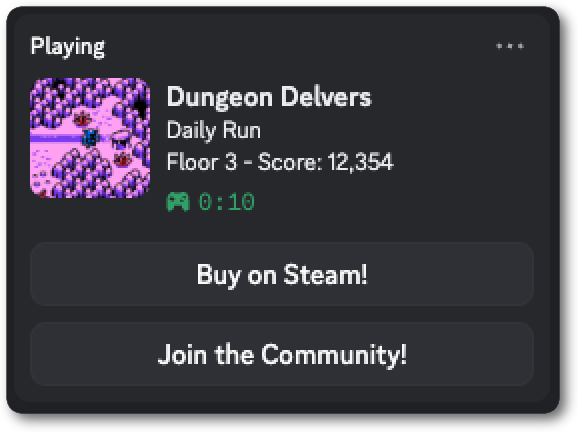
Enabling Game Invites
Section titled “Enabling Game Invites”This is where Rich Presence becomes powerful for growth with multiplayer games. With the right setup, friends can join your game directly from Discord. When you configure Rich Presence with party information and a join secret, Discord will automatically enable invites on supported platforms.
Party Information
Section titled “Party Information”You can show when a player is in a group using an ActivityParty. Party information tells other players whether there's room to join their friend’s lobby or game. When a party is defined it will display next to the current state so you’ll want to modify state to have details about the party like “In Lobby”.
activity.SetDetails("Co-op");
activity.SetState("In Lobby");

discordpp::ActivityParty party;

party.SetId("party-unique-id-248313517"); // Unique ID for this party
party.SetCurrentSize(1);
party.SetMaxSize(4);

activity.SetParty(party);activity.SetDetails("Co-op");
activity.SetState("In Lobby");
ActivityParty party = new ActivityParty();
party.SetId("party-unique-id-248313517"); // Unique ID for this party
party.SetCurrentSize(1);
party.SetMaxSize(4);
activity.SetParty(party);Activity->SetDetails("Co-op");
Activity->SetState("In Lobby");
UDiscordActivityParty* Party = NewObject<UDiscordActivityParty>();
Party->Init();
Party->SetId("party-unique-id-248313517"); // Unique ID for this party
Party->SetCurrentSize(1);
Party->SetMaxSize(4);
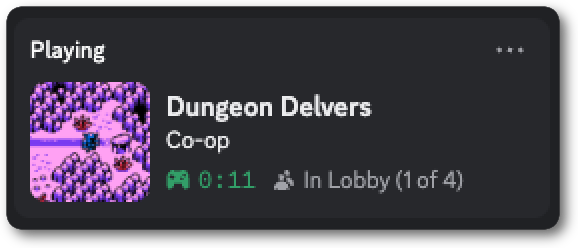
Activity->SetParty(Party);This displays as "In Lobby (1 of 4)", instantly communicating that this player has created a lobby and 3 more friends can join them.
Setting Up Invites
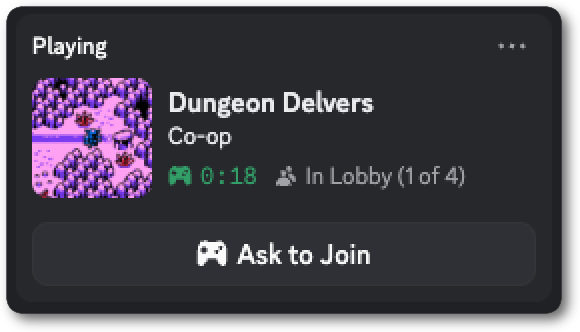
Section titled “Setting Up Invites”Once you have a party in place all you need is a join secret and Discord will automatically add invite functionality to your player’s Rich Presence.
discordpp::Activity activity;

activity.SetType(discordpp::ActivityTypes::Playing);
activity.SetDetails("Co-op");
activity.SetState("In Lobby");

discordpp::ActivityParty party;
party.SetId("party-unique-id-248313517");
party.SetCurrentSize(1);
party.SetMaxSize(4);
activity.SetParty(party);

discordpp::ActivitySecrets secrets;
secrets.SetJoin("your-unique-join-secret");
activity.SetSecrets(secrets);

// Set which platforms can join
activity.SetSupportedPlatforms(discordpp::ActivityGamePlatforms::Desktop);Activity activity = new Activity();
activity.SetType(ActivityTypes.Playing);
activity.SetDetails("Co-op");
activity.SetState("In Lobby");
ActivityParty party = new ActivityParty();
party.SetId("party-unique-id-248313517");
party.SetCurrentSize(1);
party.SetMaxSize(4);
activity.SetParty(party);
ActivitySecrets secrets = new ActivitySecrets();
secrets.SetJoin("your-unique-join-secret");
activity.SetSecrets(secrets);
// Set which platforms can join
activity.SetSupportedPlatforms(ActivityGamePlatforms.Desktop);UDiscordActivity* Activity = NewObject<UDiscordActivity>();
Activity->Init();
Activity->SetType(EDiscordActivityTypes::Playing);
Activity->SetDetails("Co-op");
Activity->SetState("In Lobby");
UDiscordActivityParty* Party = NewObject<UDiscordActivityParty>();
Party->Init();
Party->SetId("party-unique-id-248313517");
Party->SetCurrentSize(1);
Party->SetMaxSize(4);
Activity->SetParty(Party);
UDiscordActivitySecrets* Secrets = NewObject<UDiscordActivitySecrets>();
Secrets->Init();
Secrets->SetJoin("your-unique-join-secret");
Activity->SetSecrets(Secrets);
// Set which platforms can join
Activity->SetSupportedPlatforms(EDiscordActivityGamePlatforms::Desktop);Combining game invites with lobbies in the Social SDK allows players to join their friends both through your game and through Rich Presence in Discord. For multiplayer games this is huge! Your future players are already on Discord and they can now join their friends directly through invites or ask to join friends without even launching the game. For a complete implementation guide of lobbies and invites using the Social SDK see Managing Game Invites and Managing Lobbies.
Putting it All Together
Section titled “Putting it All Together”Games can use Rich Presence in so many different ways. Now that you know what each field does, here are some ideas for how different genres can combine them to turn every player’s Rich Presence into a compelling snapshot of your game.
Competitive Games (MOBAs, Shooters, Fighting Games)
Section titled “Competitive Games (MOBAs, Shooters, Fighting Games)”For competitive games, rank and match status convey so much of the gameplay. Just from peeking at a player’s Rich Presence you can see how good they are and even join them if they have lobby space.
The activity type Competing is an easy way to signal immediately that a player is in a ranked environment rather than just Playing casually. For details, leading with match type and rank, like “Ranked - Diamond II”, can show how good a player is, while state can flip between "In Lobby" and "In Match" to show whether they're available to play. A map thumbnail in the large image paired with a rank badge in the small image can help friends visualize exactly what’s happening in the game. Party info is where competitive games can really shine: “In Lobby (2 of 4)” tells friends there are open slots, and pairing it with a join secret means they can hop in right from Discord. If your game has a spectator mode or live stats page, a “Watch Match” button can even pull in friends who don't own the game yet.
MMOs and Open World Games
Section titled “MMOs and Open World Games”MMOs and open world games are all about exploration, adventure, and teamwork. Players spend hours exploring vast worlds, and Rich Presence can help friends feel that sense of scope.
Adding details is great for capturing where a player is and what they're doing. “Raid: Briar's Lair” or “Exploring: The Wildwoods” tells a rich story. Pairing that with an elapsed timer can give Rich Presence a narrative quality. A friend who's been in a raid for ninety minutes is clearly deep in battle, and one exploring for two hours might be hunting for some legendary equipment. Swapping the large image to match the current zone or dungeon as players move through the world adds another layer of visual storytelling. For group content, party info like "LFG (18 of 20)" is a natural invitation where guild members can see there's room to jump in and play.
Roguelikes and Score-Based Games
Section titled “Roguelikes and Score-Based Games”Roguelikes and score-based games thrive on daily challenges, leaderboard competition, and “just one more run”. Rich Presence should tap into that competitive energy and make friends want to jump in and beat each other's scores.
Using details can show if a player is attempting a “Daily Run” or grinding through “Ascension IV”. Then state becomes a natural home for run info like “Floor 8 - Score: 48,340”, and making it clickable with a leaderboard URL means friends can go from seeing the score to checking the standings. When someone spots “Final Floor - Score: 186,500” on a profile, the instinct to launch the game and try to beat it can be pretty strong. Swapping the large image between biome or floor art as the run deepens gives a visual sense for where the player is. Since most roguelikes are single-player, a "View Leaderboard" button is an easy way to bring players to your site, foster competition, and enable easy sharing of scores.
Story-Driven Games
Section titled “Story-Driven Games”Story-driven games need to show enough information to spark curiosity without spoiling anything. Rich Presence for narrative games should feel more like a table of contents, instead of a plot summary.
Chapter or act titles in details , like “Chapter 3: Letting Go”, can hint at where someone is in the story without giving anything away. Deliberately vague or evocative titles can pique a friends interest. Swapping the large image between chapter or location art as players progress adds a subtle visual story. Since story games are typically single-player, buttons can be your best tool for driving action. A store link turns every player's profile into a recommendation, and a second button for your community or forum gives curious friends somewhere to land.
Next Steps
Section titled “Next Steps”Rich Presence scratches the surface of what the Discord Social SDK can do for your game. Want to dive deeper? Check out some of guides:
Build a Discord bot to extend your game's presence into the community
Managing Game Invites
Implementation guide for game invites using the Social SDK to let friends join in-game or through Rich Presence
Managing Lobbies
Create multiplayer lobbies with the Social SDK
Join the Discord Developers server to connect with other game developers building on Discord, or check out the Discord Developers YouTube channel for video walkthroughs and tutorials.